See every battery in one panel
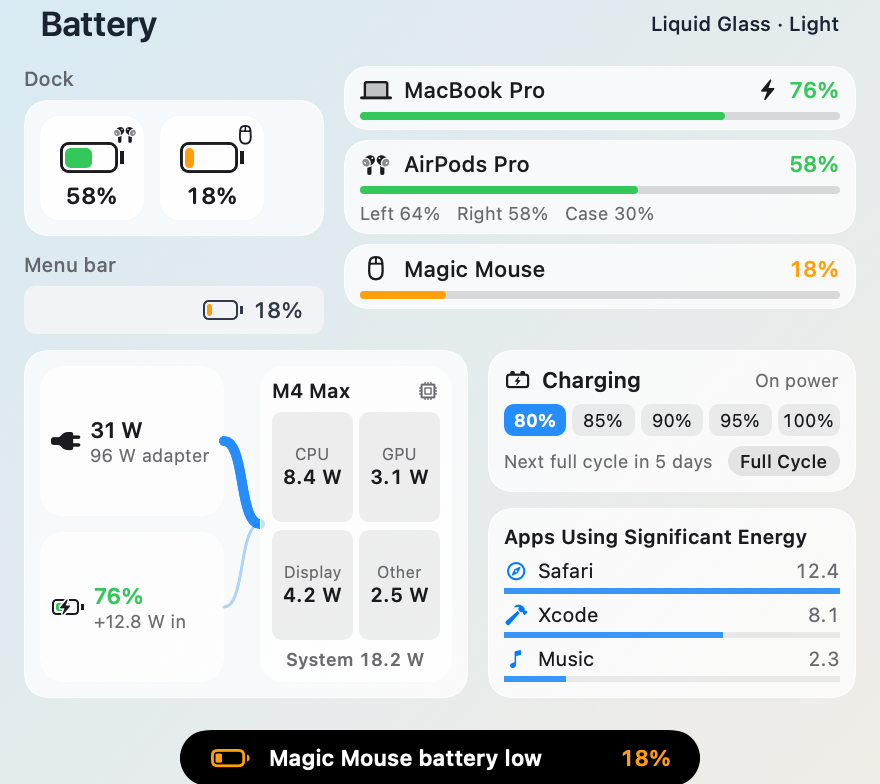
The tile shows the lowest level and the kind of device it belongs to. Click it for every battery Docktopus can read: your Mac, AirPods with left, right, and case levels, AirPods Max, Beats, and Magic accessories. Levels refresh every minute and right away when your Mac’s power changes.
See where the power goes
Your Mac appears as a chip at the top of the panel, unless you hide its own battery in Settings. Power flows in from the adapter and the battery and splits into CPU, GPU, display, and everything else, updated every two seconds while the panel is open. Below it are battery health and condition as System Settings shows them, cycle count, temperature, voltage, the adapter’s name and rating, and serial numbers.
Look back and ahead
Click the chip to turn it over to your battery history: any device’s level over the last 24 hours, 7 days, or 30 days, with charging shaded, and your Mac’s battery health from day to day. From how fast each battery has been draining, the panel tells you how long it has left, such as about 3 h for your Mac or about 4 days for a Magic Mouse, and when your Mac reaches its charge limit. An optional Dynamic Island alert warns when a device is expected to run out within the hour. Levels are saved every 5 minutes for 30 days on this Mac only; turn history off or clear it in Settings → Widgets → Battery.
Look after the battery
Set the charge limit to 80, 85, 90, 95, or 100% right from the panel. It is macOS’s own limit from System Settings, so it holds even when Docktopus is not running; a full cycle or the heat hold only borrows it, and quitting Docktopus puts yours back. A full cycle, by hand or weekly or monthly, runs the battery down to 15%, charges it to 100%, rests an hour, and returns to your limit, asking you to unplug or plug in when needed and carrying on by itself. While the battery is hot, Docktopus can hold it at 80%. The panel lists the five apps you can quit that use the most energy, as Activity Monitor measures it.
Catch the apps draining it
Turn on energy warnings and, while your Mac runs on its battery, Docktopus checks once a minute which apps you can quit are using the most energy. When one keeps an Energy Impact of 20 or more for five minutes, the Dynamic Island shows its icon with Quit and Ignore, once per app a day. Ignore silences that app until you change it in Settings → Widgets → Battery. The prompt waits while you are reading it, and nothing is checked while you are plugged in.
Top up before you travel
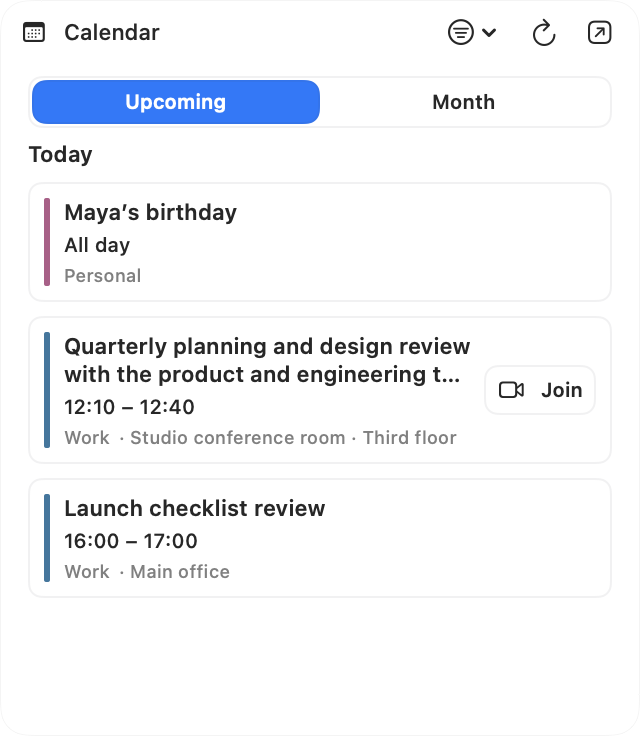
Keep the charge limit for everyday life and still leave with a full battery. With Top Up Before Travel, Docktopus looks a day ahead in your calendars for events with words like flight, train, or trip, or at a place you do not usually go, and lifts the limit early enough to be full when they start, from how fast your Mac actually charges. Once you unplug or the event ends, your limit is back. It needs calendar access and only reads your events.
Get warned twice, not constantly
A Dynamic Island alert appears once when a device reaches 20% and once more at 10%. It stays quiet until the device has charged again, so a level that hovers around 20% does not keep interrupting. Turn alerts off, or keep them on even without a Battery widget in the dock, in Settings → Widgets → Battery.
Hear it in the Audio Mixer
When AirPods or other Bluetooth headphones are the system output, the Audio Mixer shows their battery next to the device name, including left, right, and case levels.
Private by design
Your Mac’s battery needs no permission. Reading AirPods and other Bluetooth batteries asks for Bluetooth access once, only when you use the widget. Docktopus reads battery levels only; nothing is sent anywhere.
At home in every theme
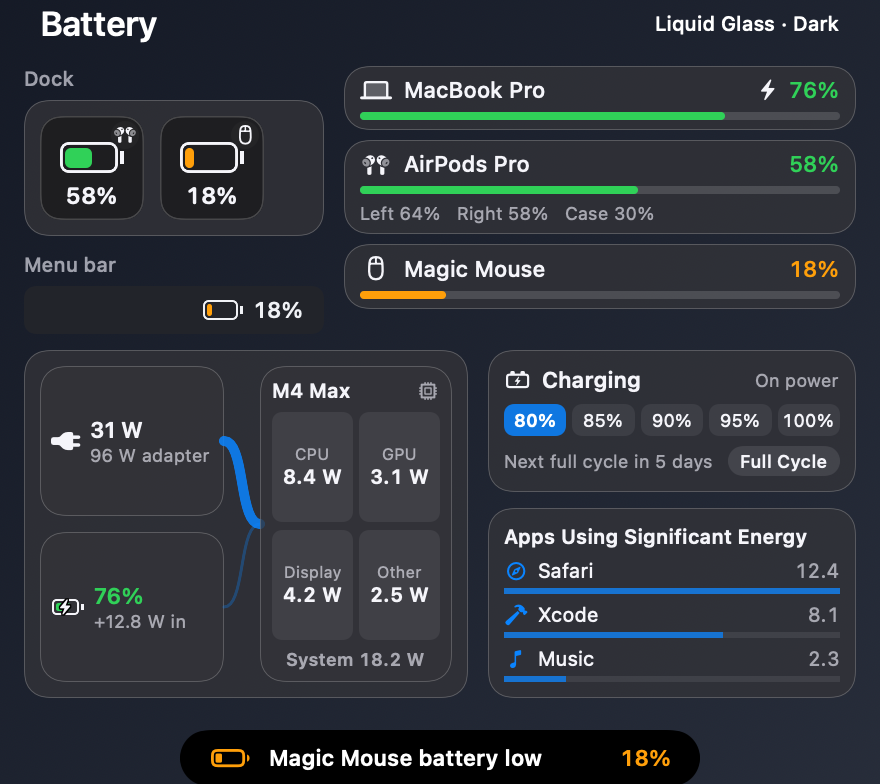
Liquid Glass, CDE, and Windows 95 each draw the battery in their own shape language and colors, with light and dark presets. In Windows 95, Battery is a taskbar button that shows the lowest level. Themes can set their own normal, low, and critical colors.