Docktopus for macOS

Make it yours

Three theme families, community themes, input soundpacks, macOS tweaks, and a shortcut cheat sheet.

Three distinct themes. Light and dark presets. Free to try, one purchase to keep.

Make it yours

A Mac that feels like your Mac.

Start with a theme. Fine-tune the details, add a sound you like, keep useful shortcuts within reach, and let Shortcuts or a Focus mode switch it all for you.

Three personalities. All yours.

Choose a family to see it across this page. Every family includes light and dark app presets, its own icons, and matching controls.

Go further with JSON theme authoring: customize icons, typography, colors, dock sizing, widget surfaces, and menu bar styling.

Browse community themes Themes made by other Docktopus users, ready to install, and a place to share your own.

Set it up once: export your whole configuration to a file, or keep the two Macs on your licence in sync. Synced settings are encrypted on your Mac, and each monitor keeps its own dock settings.

Input soundpacksGive typing and clicks their own sound.

Keyboard and mouse sounds

Give typing and clicks their own sound.

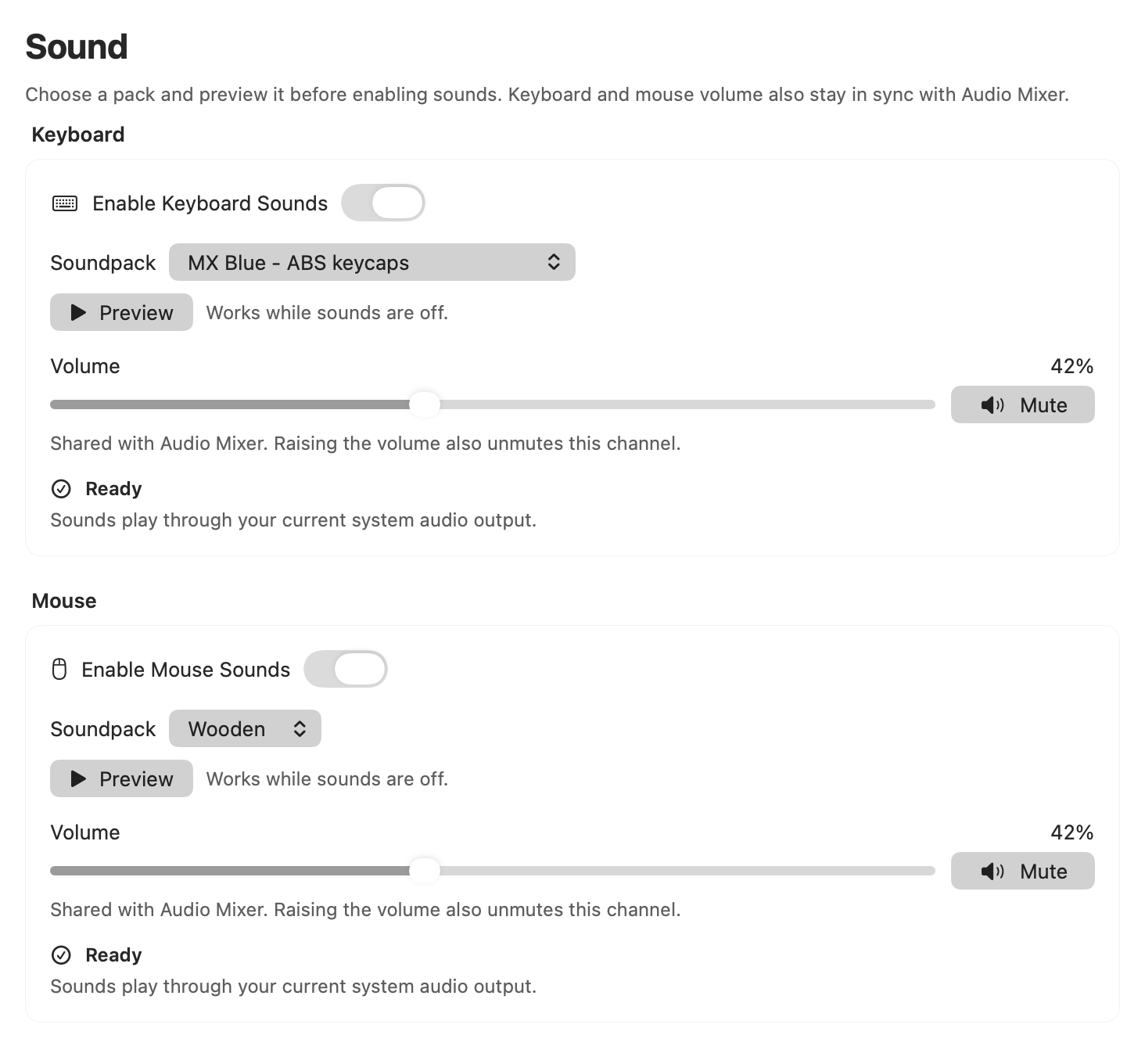
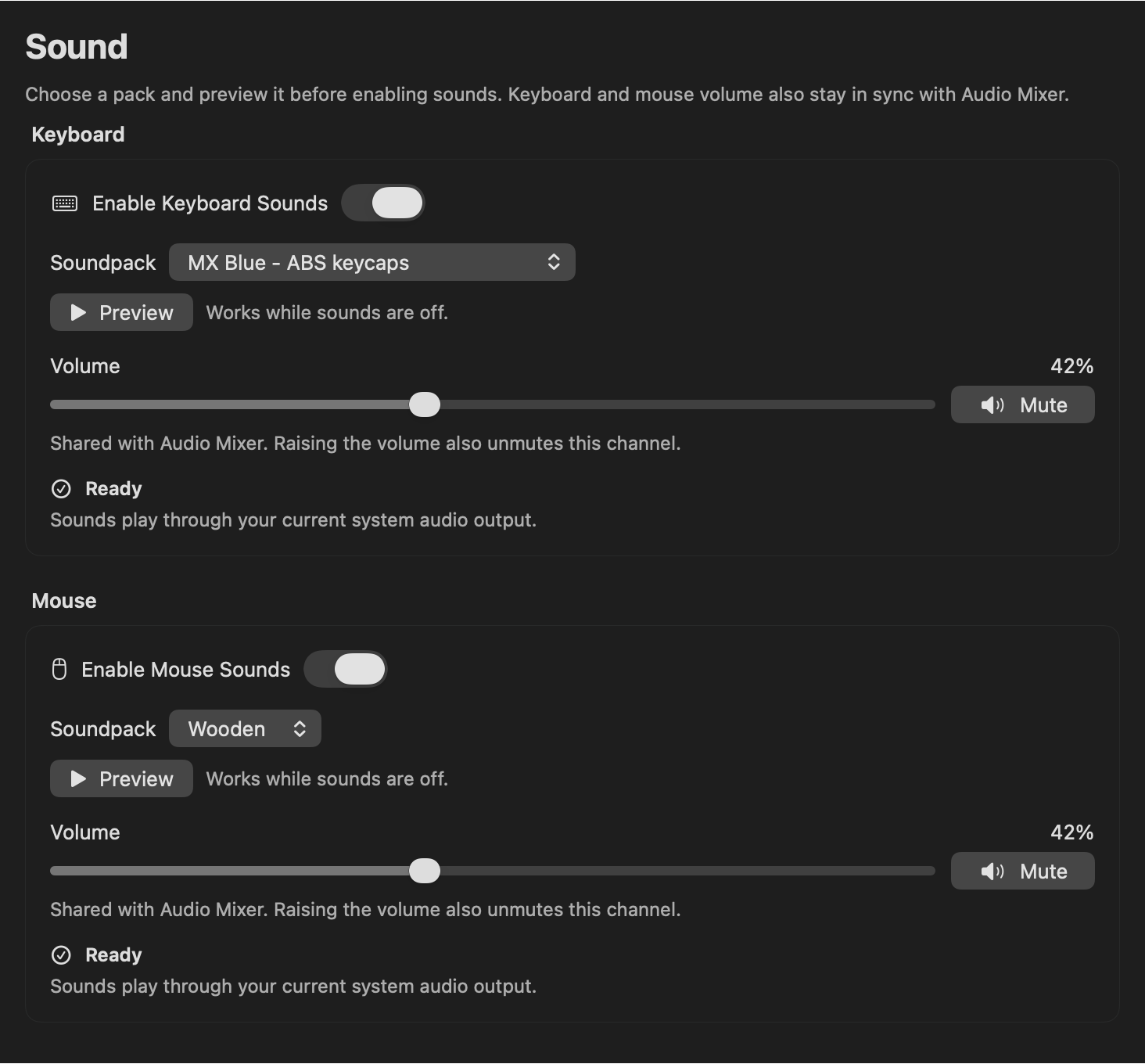
Give typing and mouse clicks a sound you enjoy. Preview soundpacks first, then choose separate volumes or mute them whenever you want.

Controls and details

Choose your keyboard sound

Open Settings → Sound to choose keyboard and mouse soundpacks.

Pick from 10 keyboard packs, including MX switch recordings with ABS or PBT keycaps, EG Crystal Purple, EG Oreo, and Topre Purple Hybrid. You can change the selected pack while keyboard sounds are off.

Give clicks a sound of their own

Choose from 4 mouse packs: Chat, Ping, Vibrate, and Wooden. Mouse sounds have their own pack selection and enable control, so you can use keyboard sounds, mouse sounds, or both.

Listen before enabling

Use Preview to hear a short keyboard or mouse sample, even with that channel off and without Input Monitoring permission. Stop Preview ends it early. Previews respect volume and mute and leave your saved enable settings unchanged.

Keep the volume comfortable

Set each channel’s volume with a percentage slider, or mute and unmute it directly. These controls share their saved values with Audio Mixer. Raising the volume also unmutes the channel. Sounds play through your Mac’s current system output.

Hear input across apps

Enable keyboard and mouse sounds separately to hear your input across apps. Live input sounds require macOS Input Monitoring permission; Sound settings provide a shortcut to open it. Pack previews work without that permission.

Know when sounds are ready

Each channel shows whether it is off, loading, ready, muted, or needs attention. If a pack cannot load or input monitoring needs recovery, use Retry or open Diagnostics from the same card. Onboarding also offers a keyboard pack preview during setup.

macOS TweaksReview and apply the small details.

macOS Tweaks

Make the small desktop details yours.

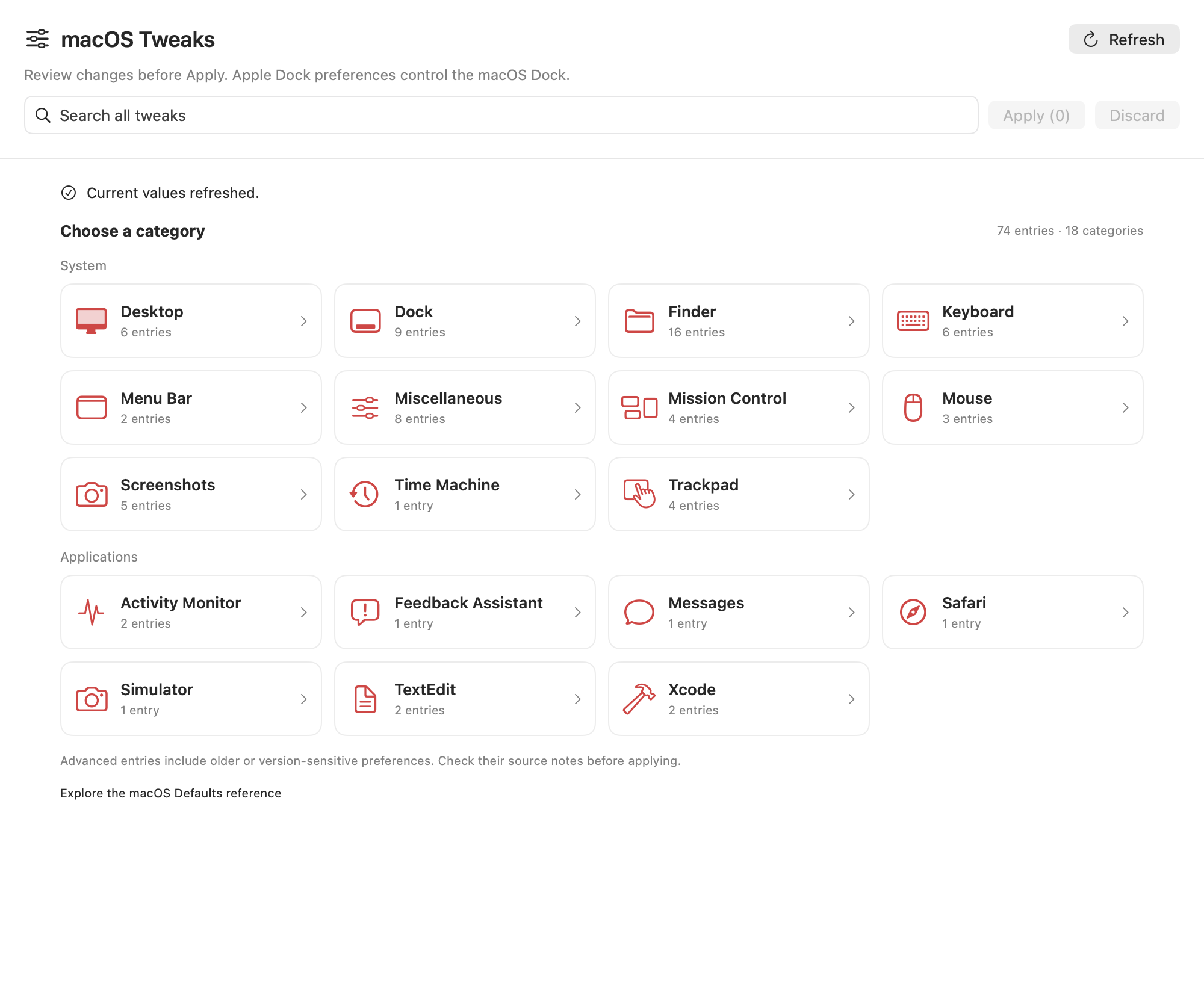
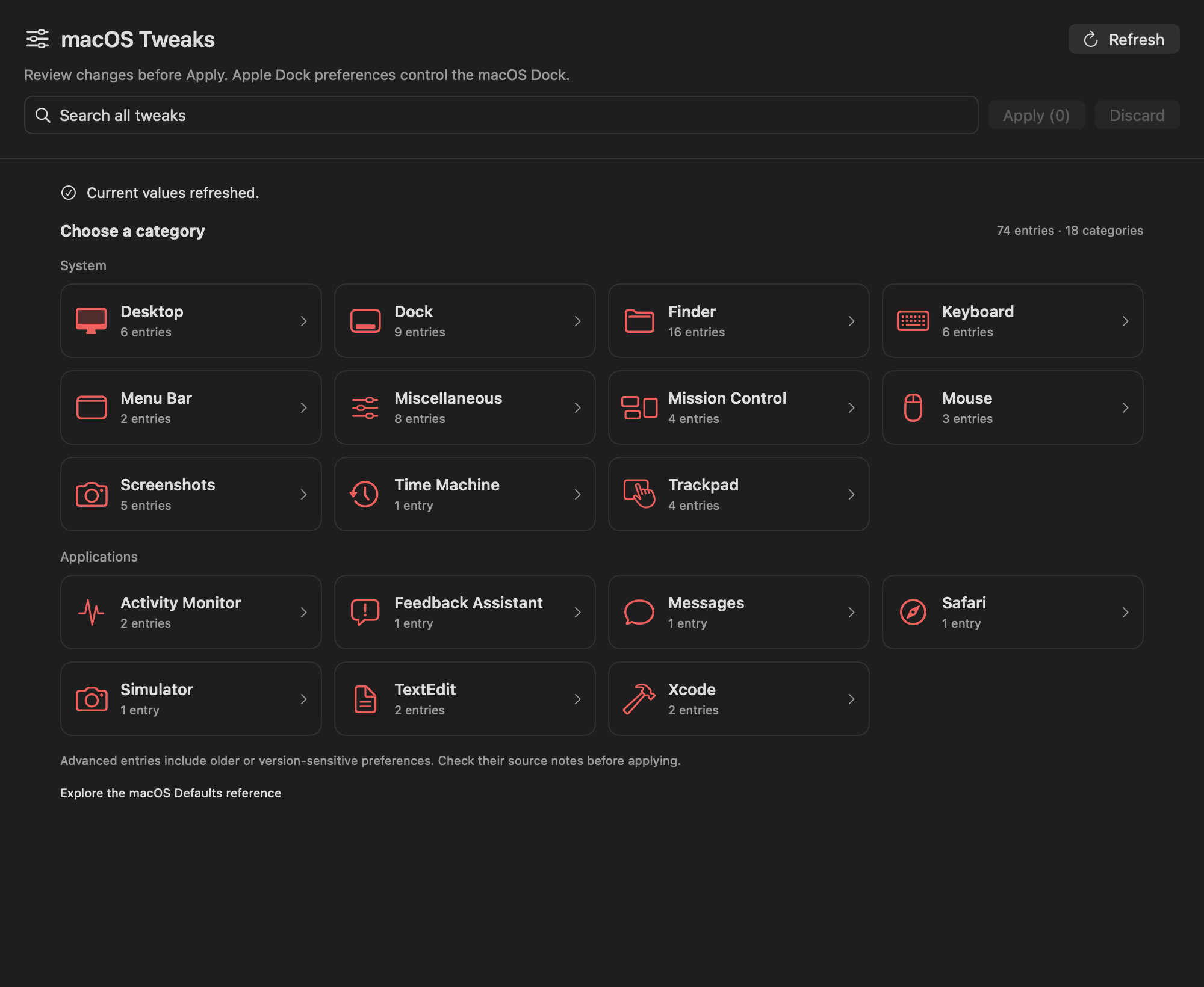
Make Finder, the Dock, screenshots, and other desktop details work your way. Browse 74 preferences across 18 categories, review pending changes, and apply them when ready.

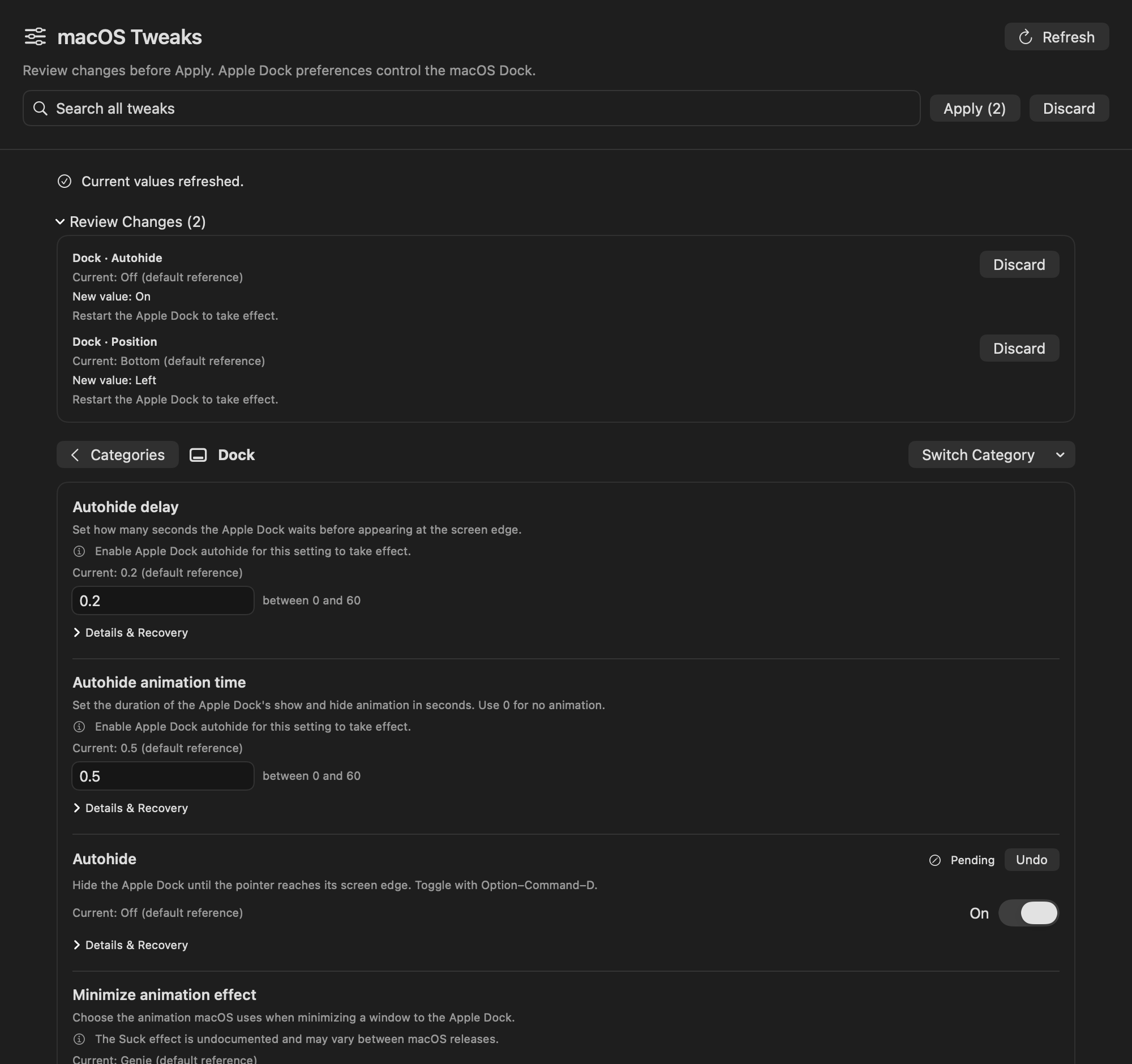
More macos tweaks views
Controls and details

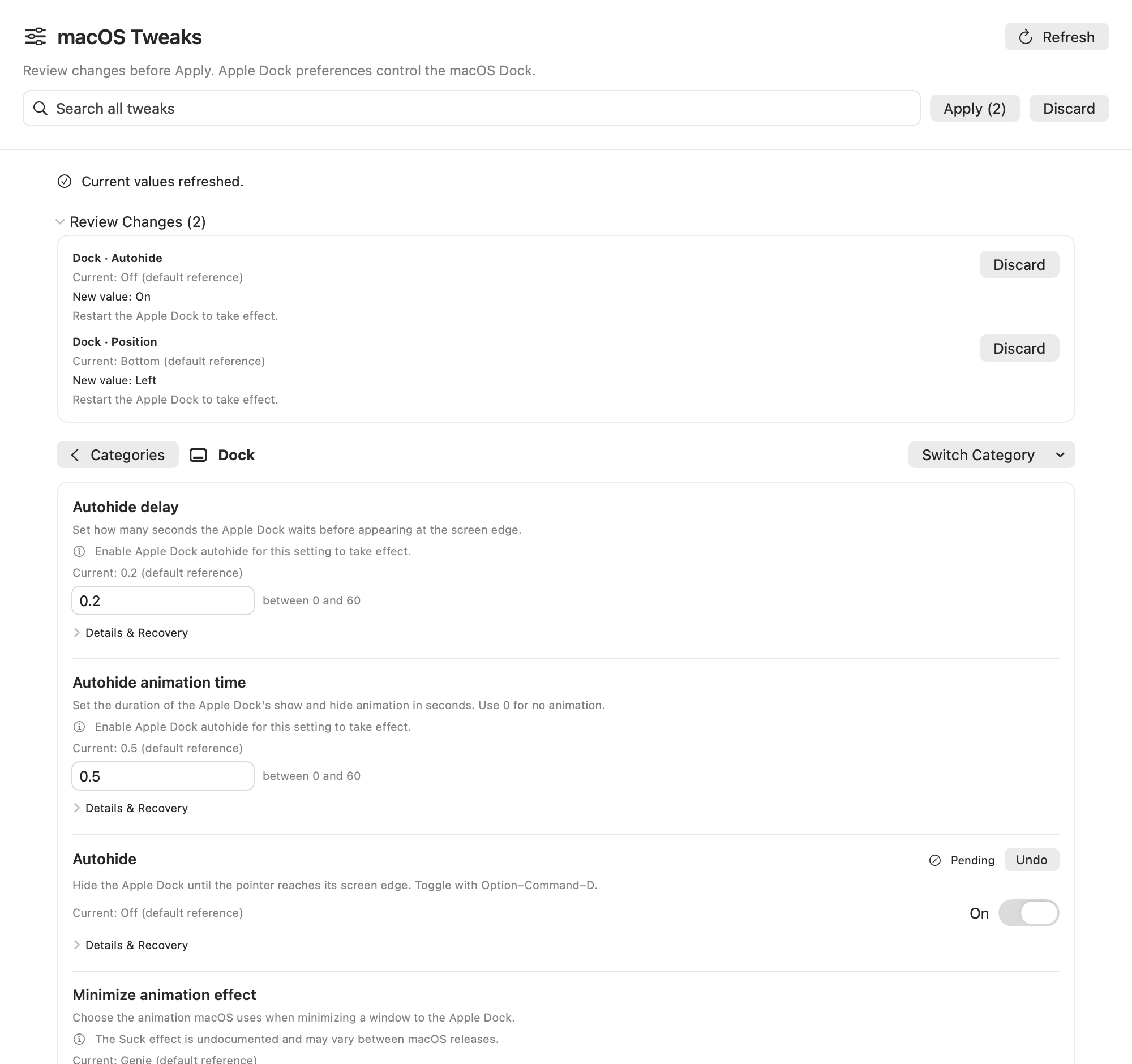
Open Settings → macOS Tweaks. Changes stay staged until you click Apply.

Finder and Desktop

Show hidden files and filename extensions, keep folders first, choose Finder’s default view and search scope, and show its path or status bar. Control desktop icons, with advanced entries for disks, removable media, and connected servers.

Apple Dock

Adjust autohide delay and animation time, icon size, screen position, minimize effect, recent apps, and scrolling to App Exposé. These preferences affect Apple’s macOS Dock. Docktopus panel appearance remains in its own settings.

Screenshots

Choose PNG, JPG, or HEIC, pick an existing save folder, include the date in filenames, and control the floating thumbnail and window shadow. Folder selection is built into the preference editor.

Keyboard, mouse, and trackpad

Choose the Fn/Globe action, standard function keys or media controls, keyboard navigation, and double-space periods. Adjust mouse speed and acceleration, trackpad click weight, and advanced dragging preferences. Focus Follows Mouse applies only between Terminal windows.

Spaces and the menu bar

Control automatic Spaces rearrangement, switching to an app’s Space, and grouping windows in Mission Control. Advanced entries cover separate display Spaces and menu bar clock formatting. Details explain when logout or a component restart is needed.

Built-in apps and other preferences

Choose Activity Monitor’s Dock icon and update frequency, show the Messages subject field, and tune TextEdit’s format and smart quotes. Advanced entries include Safari’s full URL, Simulator’s screenshot folder, Xcode build durations and counterpart suffixes, and Time Machine’s new-disk prompt.
Review, apply, and come back to a previous value.

  1. Find and stage. Browse System and Applications categories or search the catalog. Edit a value, choose Reset to macOS Default, or Restore Previous Value. Discard one pending change or all of them before applying.
  2. Review and Apply. Check the pending changes and their effect notes, then click Apply. Values are validated, and preferences changed outside Docktopus must be refreshed and reviewed before another attempt. If a change fails, its error remains visible; successful changes are kept.
  3. Reset or restore. Reset removes the stored preference key so macOS supplies its default. Restore stages the value saved before that preference’s most recent Apply, including when no key was set. Previous values stay available after relaunch.
  4. Finish when ready. Restart Finder, Apple Dock, or SystemUIServer through a confirmation prompt when needed. Other entries show instructions to reopen an app, log out, or restart your Mac. Applying a preference does not restart those components automatically.

Each entry includes its description, source default reference, source-tested macOS version notes, effect notes, and documentation link. Older and version-sensitive preferences sit under Advanced; unavailable entries are identified and cannot be edited. The catalog’s 74 entries include those unavailable entries. Reference defaults and support can vary with your macOS version and hardware.

Shortcut Cheat SheetFind the command you are looking for.

Shortcut Cheat Sheet

The current app’s menu shortcuts, close at hand.

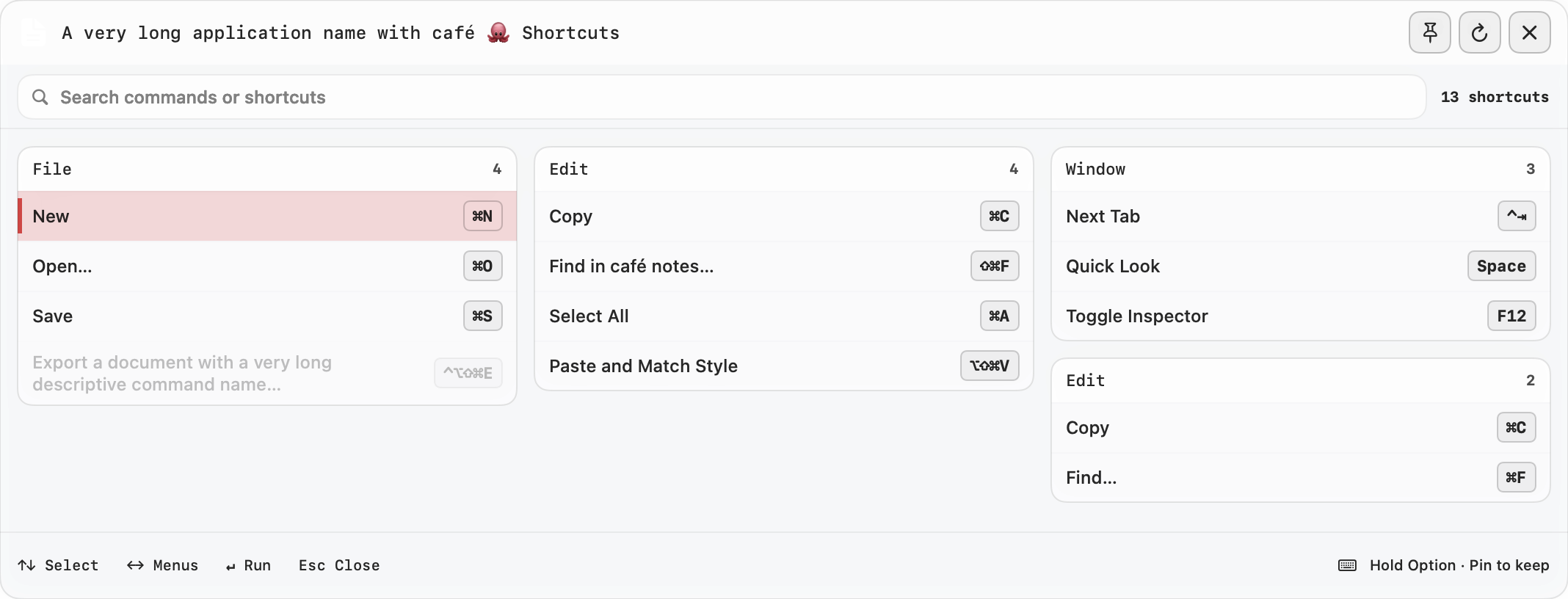
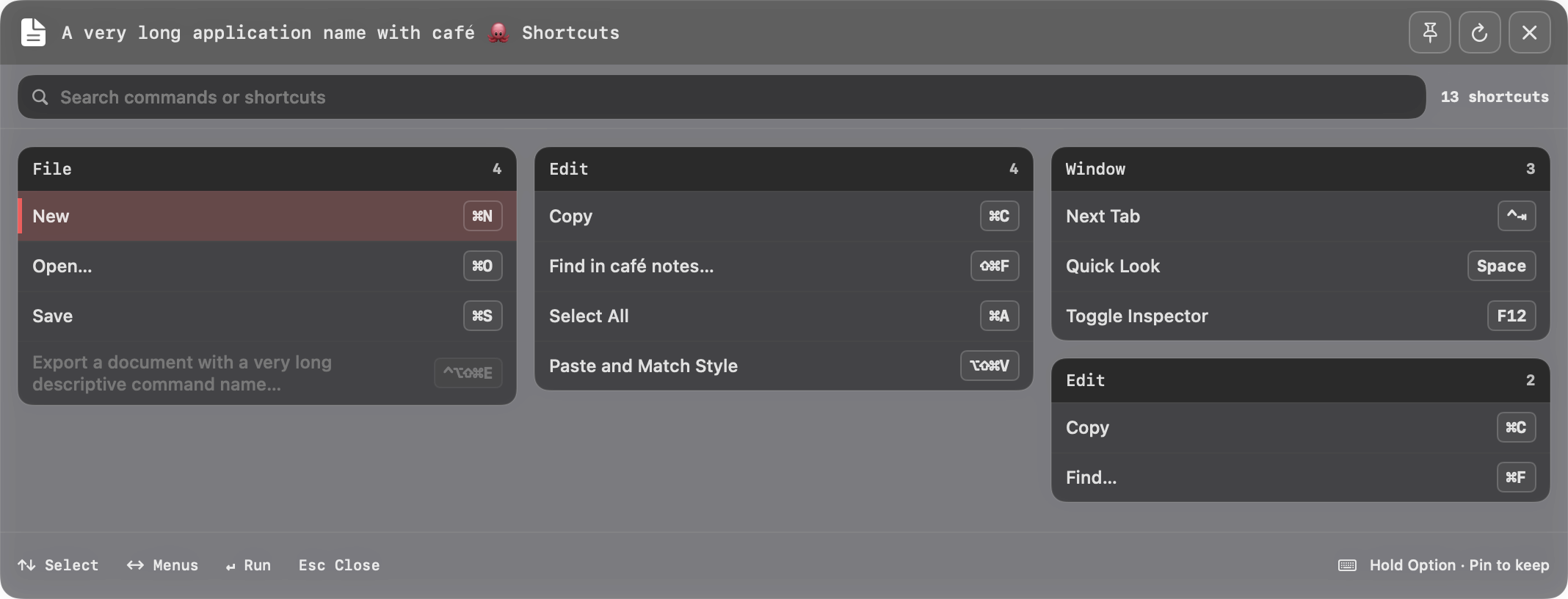
Find the current app’s menu shortcuts without memorizing them. Hold to open, release the key, and search or browse for the command you need.

Controls and details

Hold to open, release to browse

Hold Option for two seconds to open the sheet, or choose Command, Control, or Shift as the hold key in Settings. Release the key and the sheet stays open for searching and keyboard navigation. Click outside its window or press Esc to close. Switching to another app also dismisses it; open it again for that app’s menu shortcuts.

Find a command by name or shortcut

Type to filter command names, menus, and keyboard shortcuts. Combine several words in any order; search ignores case and accents and understands modifier names and aliases such as command/cmd, option/alt, and control/ctrl. Press ⌘F to focus the native search field for text editing, selection, and paste, or use the clear button to restore the full list.

Navigate without reaching for the mouse

Use ↑ and ↓ to select available commands. Outside the search field, ← and → move between visible columns, and Tab and Shift-Tab cycle through enabled commands. In search, left and right arrows move the text cursor. Selection scrolls into view. Press Return to run the selected command or Esc to close and return to its source app.

Run the command you choose

Click an enabled command or press Return to request it in the source app and close the sheet. Disabled commands remain visible and are skipped during keyboard selection. Docktopus checks a menu command’s availability again before running it; if a command is no longer available, the sheet provides feedback so you can refresh and try again.

See what the app makes available

Accessibility permission is required to read and run app menu commands. The sheet offers an Open Accessibility Settings action when access is missing. Custom or hidden shortcuts only appear when the app also exposes them in its menus. Loading, empty, unavailable-menu, and partial-result states explain what was found. Refresh rereads the app’s menus and availability while keeping your search and the sheet open.

Match your desktop and keep controls in reach

Use Liquid Glass, CDE, or Windows 95 with light and dark presets, readable shortcut labels, and a visible selection marker. Small menus use a compact panel; larger menus scroll within the display’s visible area while search and controls stay in reach. The sheet respects Reduce Motion, Reduce Transparency, and Increase Contrast settings.