Three distinct themes. Light and dark presets. Free to try, one purchase to keep.
Multi-monitor support
A dock for every screen you choose.
Choose the screens that get a dock, then place it on the edge that suits you. Your selections stay remembered when you disconnect and reconnect a display.
Liquid GlassLight presetLiquid GlassDark preset
Controls and details
Choose your screens
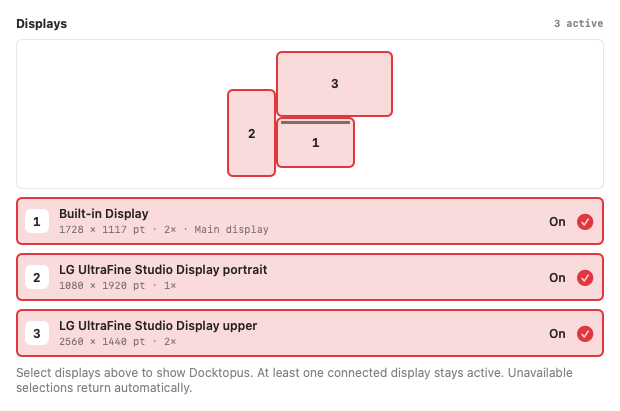
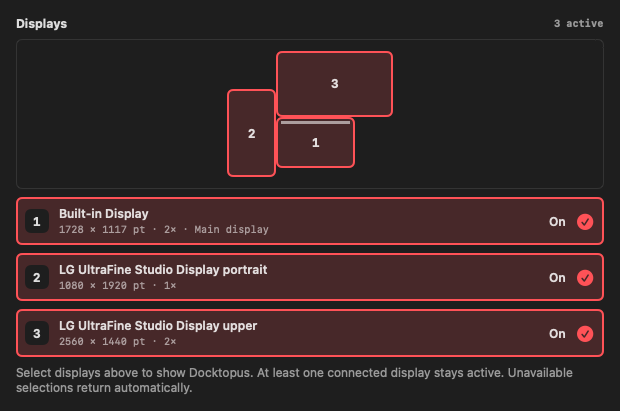
In Settings → Dock, select one display or several. A numbered map follows your desktop arrangement, while readable rows show each monitor’s name, logical size, scale, and main-display status. Choose Dynamic Island’s displays separately, so the dock and Island can appear where each works best for you.
Use the edge that suits you
Place the dock along the bottom, top, left, or right edge and choose its alignment. Your dock layout, theme, position, and scale settings are shared across selected screens, with the layout fitted to each display’s available space. Auto-hide reveals the dock on the screen you approach.
Keep panels close
App Starter, folder panels, and dock-anchored tools open on their source display. Clipboard history opens on the screen under your pointer and keeps that screen for the session. Panels fit the available space, and window previews adapt to Retina and standard displays.
Unplug without losing your setup
Your display selections stay remembered when a monitor disconnects. If none of your selected screens are connected, the dock and Island temporarily fall back to the main display. Reconnect a selected monitor and its saved selection returns automatically. Settings show the temporary fallback and remembered disconnected displays.
For brightness, resolution, rotation, and monitor arrangement, explore Display Controls.