Clipboard capture is off by default. Enable it in Settings, then open history with ⌘⇧V or choose a custom keyboard shortcut.
Search as you type
Start typing or press ⌘F to search copied snippets, clip titles, source apps, filenames, and categories. Combine several words, in any order, to narrow the results. Matching text is highlighted in previews, including recognized text in images.
Move from search to paste
Use ↑ and ↓ directly from search to select a result, then press Return. If results are still loading, Return waits for the current search and keeps your arrow-key selection. Outside search editing, all four arrow keys browse cards. Esc leaves search editing, then closes the panel.
Recognize clips at a glance
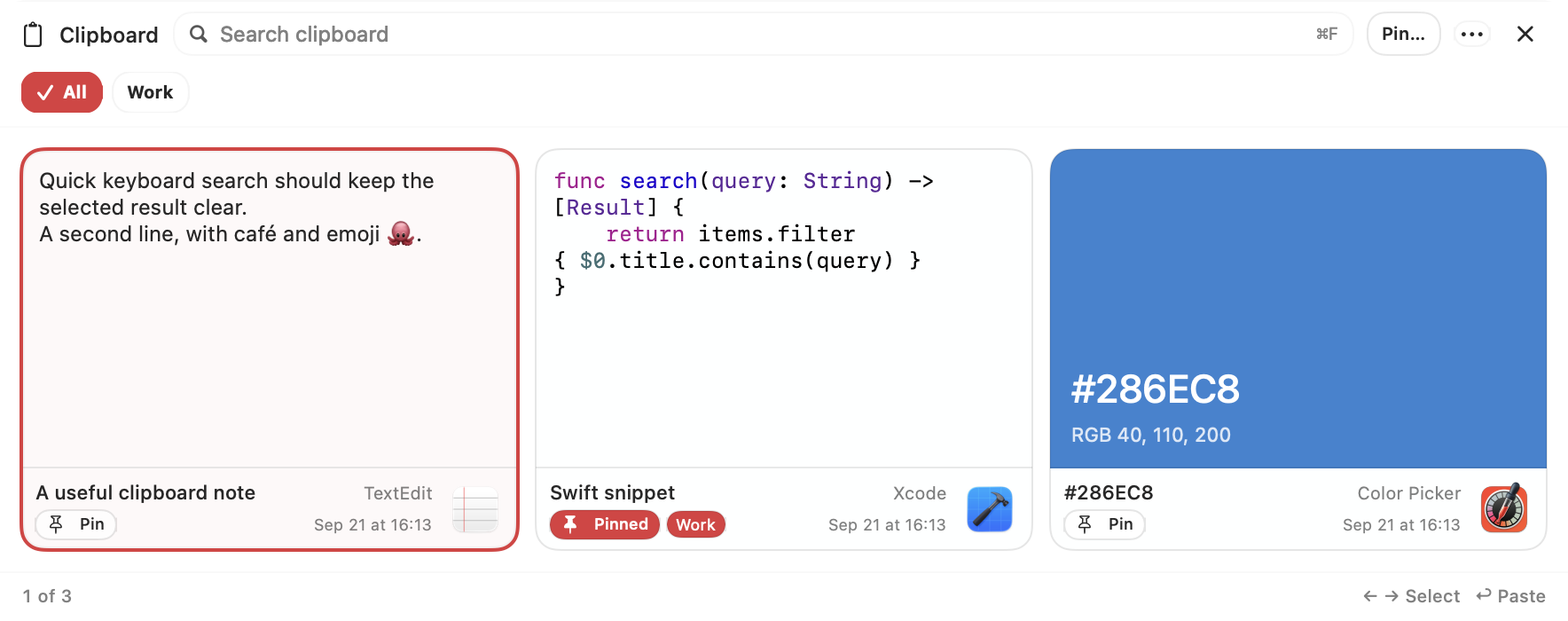
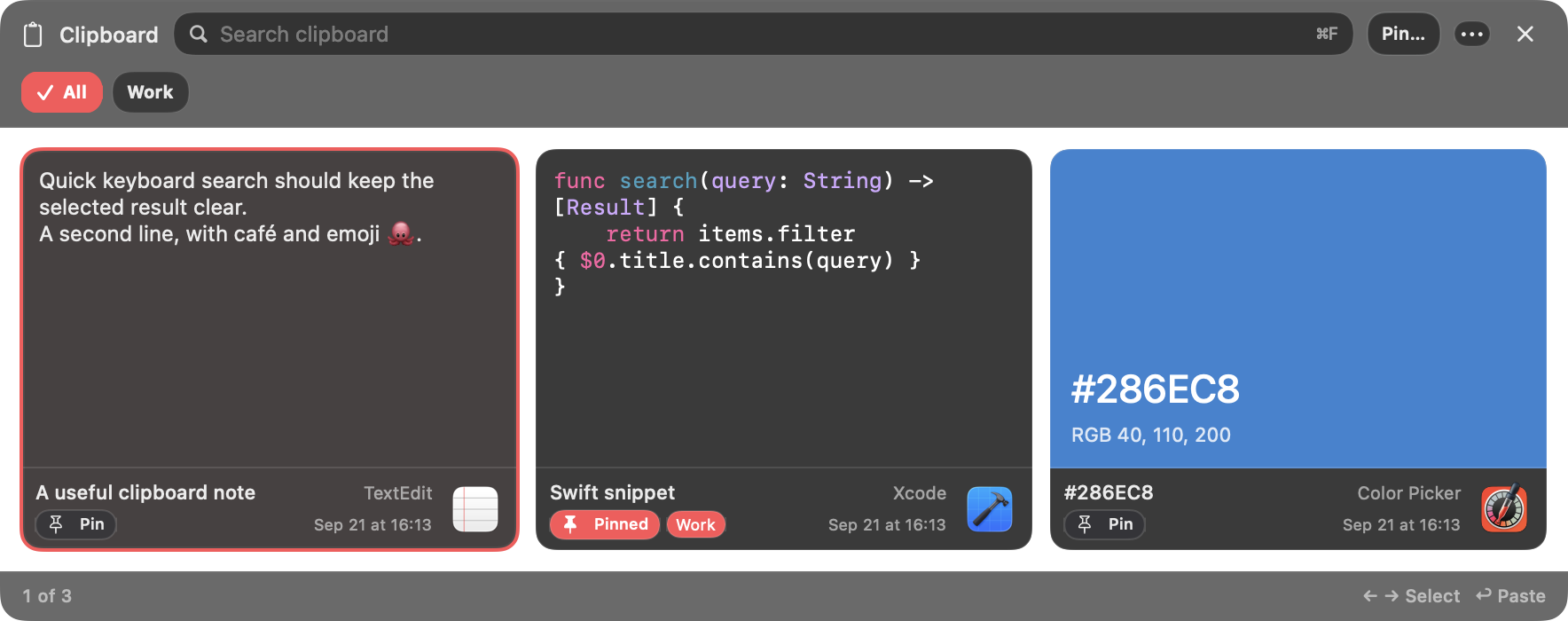
Browse text snippets, image thumbnails, file previews, and website cards, with source-app icons and timestamps. Recognized code snippets get syntax highlighting; copied hex colors in #RGB or #RRGGBB form show a swatch and RGB values. A selection counter keeps your place in the results.
Find words inside images
On-device text recognition makes copied images searchable by the words they contain. Matching text regions are highlighted directly on the image preview, so you can find a screenshot without remembering when you copied it.
Pin, categorize, and rename
Use ⌘P to pin or unpin reusable clips. Keep them in Main or a named category and filter from the category bar. Rename a clip’s label without changing its copied content; saved titles survive copying it again. Copying the same content again updates the existing clip, keeping its pinned category and custom title. Pinned clips are preserved during history cleanup.
Paste with the formatting you want
Return restores the selected clip and pastes it into the app you were using. Automatic pasting requires Accessibility permission; Restore Selection to Clipboard Only lets you paste manually without it. Choose Paste as Plain Text to remove formatting. ⌘⇧C copies a clip while editing search; ⌘C does the same while browsing cards. Copy Item also works from the actions menu without closing the manager.
Clean up pasted links
Optionally remove recognized tracking parameters, including UTM tags and common advertising click IDs, when pasting. Supported redirect links are unwrapped to their destination. This setting changes the pasted link without rewriting the saved clip.
Drag clips or use the Island
Drag supported text, links, images, and files into another app. Clipboard history is also available in Docktopus’s Island, with the same search and category controls. File clips reference the original files; previews and dragging depend on the file type and continued access to those files. Files in protected Desktop and Documents folders show a lightweight filename card instead of loading their contents for a preview.
Choose your retention window
Unpinned history is kept for one month by default. Choose 1, 2, 4, 6, 8, or 12 months, or choose Unlimited. Expired clips are cleaned up at startup and every 12 hours. Delete individual unpinned clips or confirm Clear Unpinned History in the actions menu. Pinned items and their categories are kept.
Keep capture and website previews under your control
Clipboard history and text recognition stay on your Mac. Keychain Access and common password-manager apps are excluded automatically; copies carrying recognized sensitive clipboard markers are skipped. Exclude other apps in Settings, disable the manager, or use Privacy Pause for 5, 15, 30, or 60 minutes.
Automatic website previews are on by default. Turn them off, exclude hosts and their subdomains, or use Load preview for an individual link. Loading a preview contacts the website and may contact other hosts used by the page, which can receive your IP address and requested URL. Saved previews remain visible when automatic loading is off.