Three distinct themes. Light and dark presets. Free to try, one purchase to keep.
Time Spent & Remembrance
Pick up where your day left off.
Understand how you spent your time, or find something you remember seeing. Both histories stay on your Mac; choose what you capture and when to pause.
Time Spent
Know where the day went.
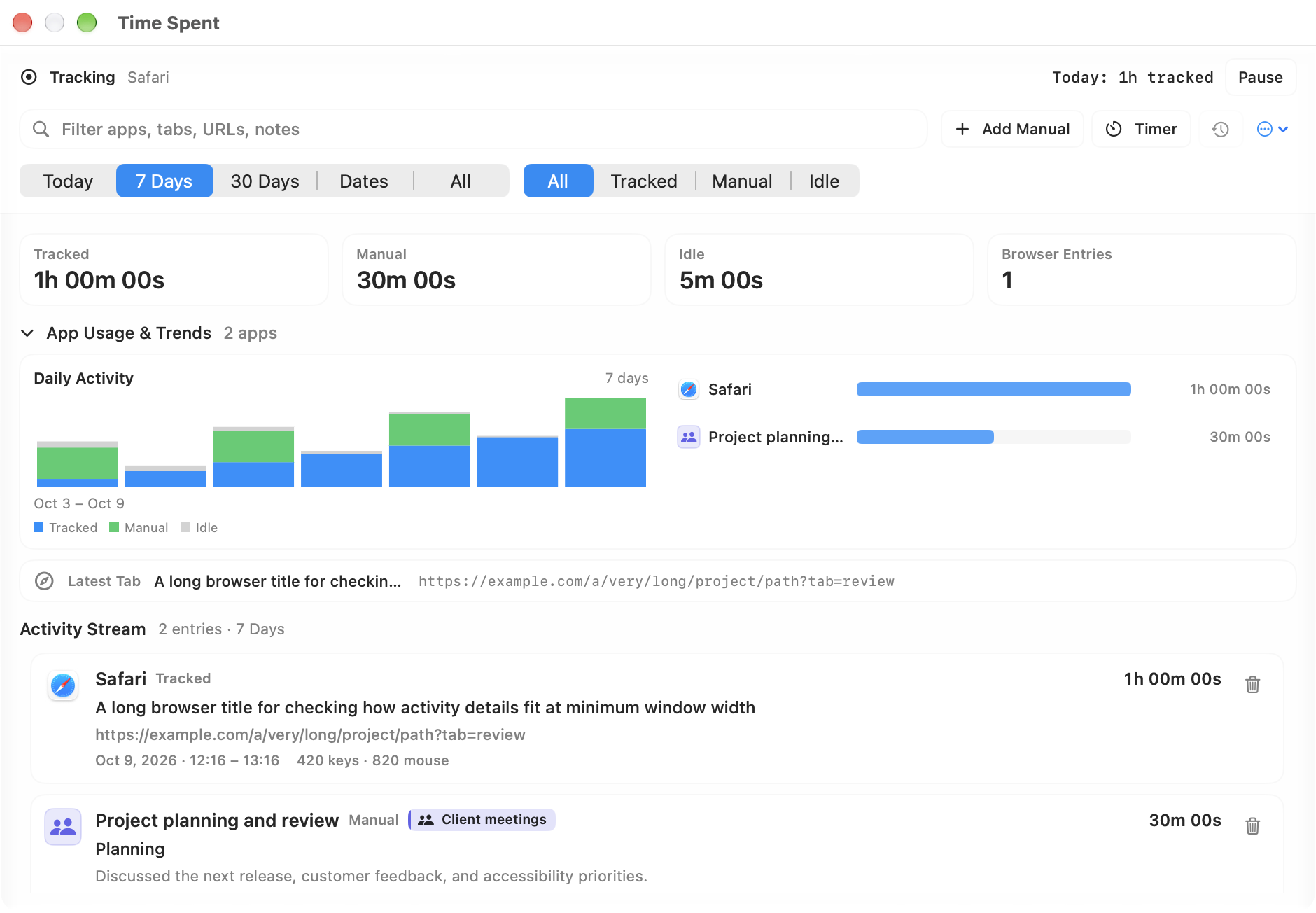
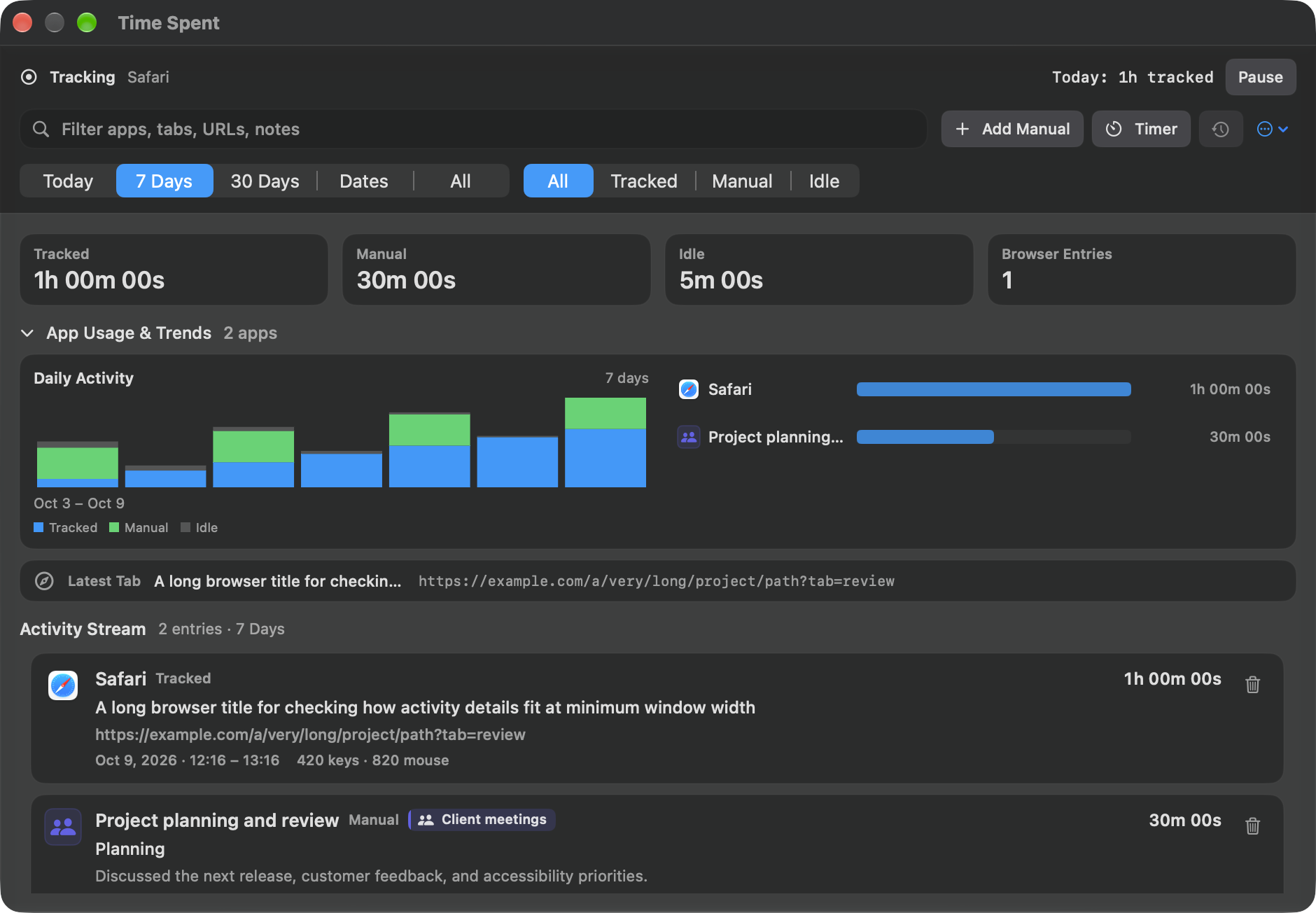
See where your day went, compare app usage, and add manual time or timers. Your activity history stays on your Mac. Automatic tracking is off by default; turn it on when you choose.
Liquid GlassOverview · Light presetLiquid GlassOverview · Dark preset
Tracking, reports, and privacy
The day at a glance
Keep today’s tracked total in view, compare time by app, and see Daily Activity across your selected dates. Tracked, manual, and idle time stay clearly separated. Browser Entries counts records containing URLs, rather than unique websites.
Find the work you need
Choose Today, 7 Days, 30 Days, All, or a custom date range. App Usage & Trends opens expanded; select an app to filter the stream, or choose Show All Apps to clear that selection. Press ⌘F to search apps, browser titles, URLs, and notes. Clear search with Escape, or use Reset Filters to clear the app, entry type, and search together.
Apps and browser activity
Record foreground-app time, available titles and URLs from supported browsers, idle periods, and keyboard and mouse event counts. Browser details depend on browser support and macOS Automation or Accessibility permissions; app time continues if those details are unavailable. Input Monitoring access is needed for idle detection and input counts.
Add work beyond the screen
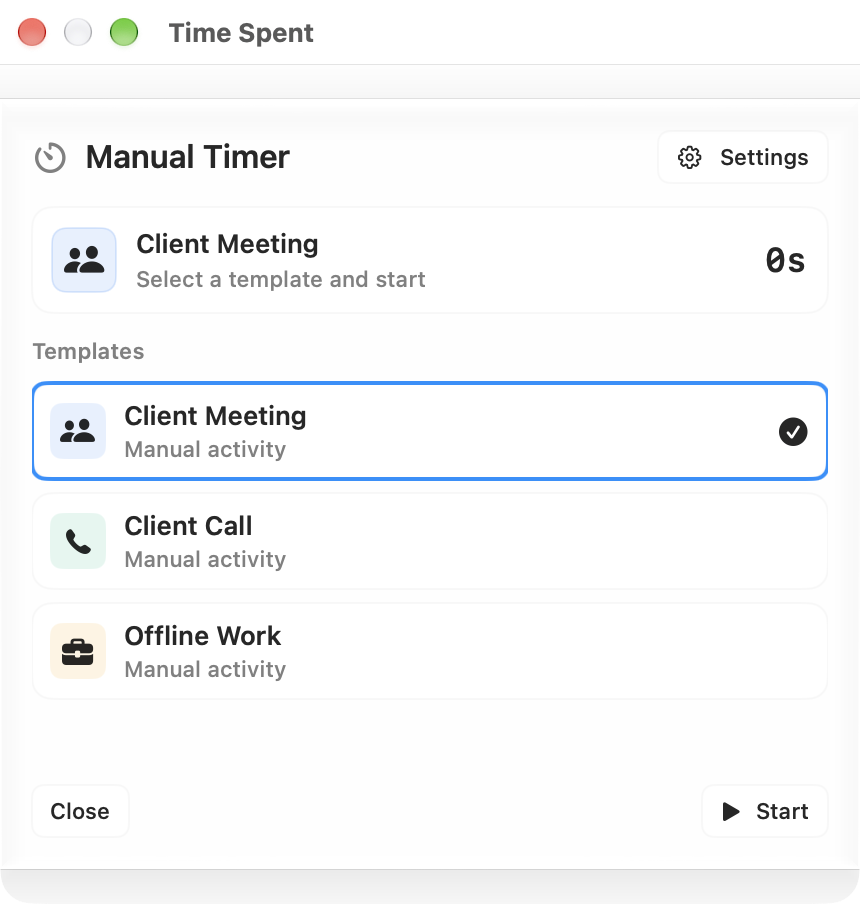
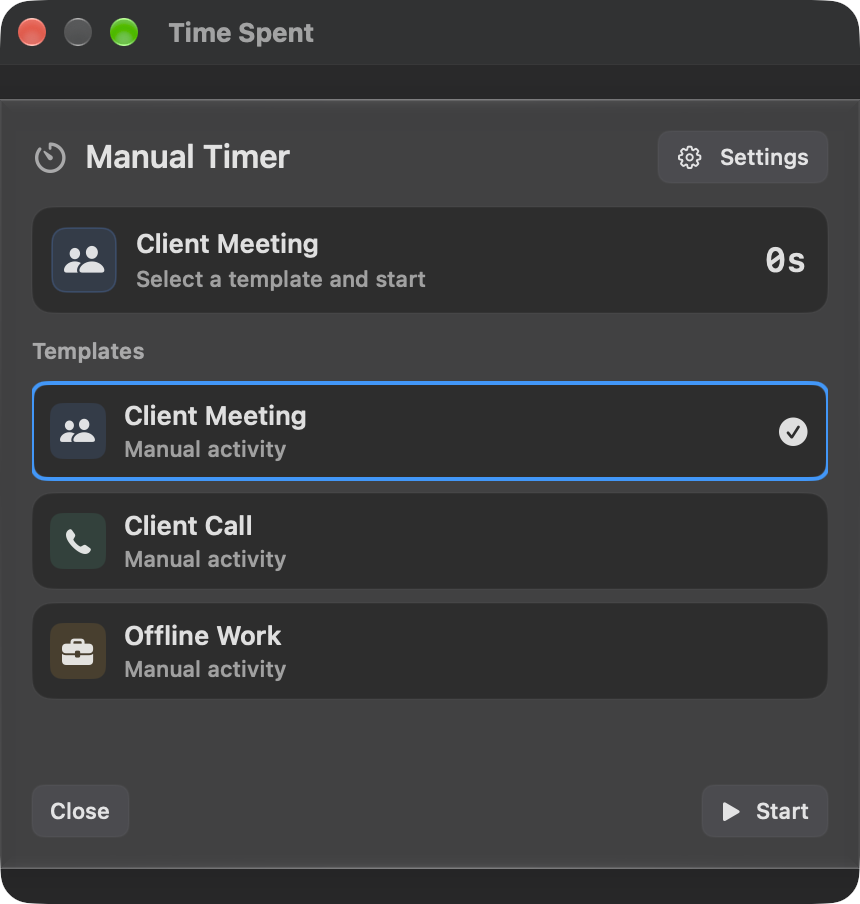
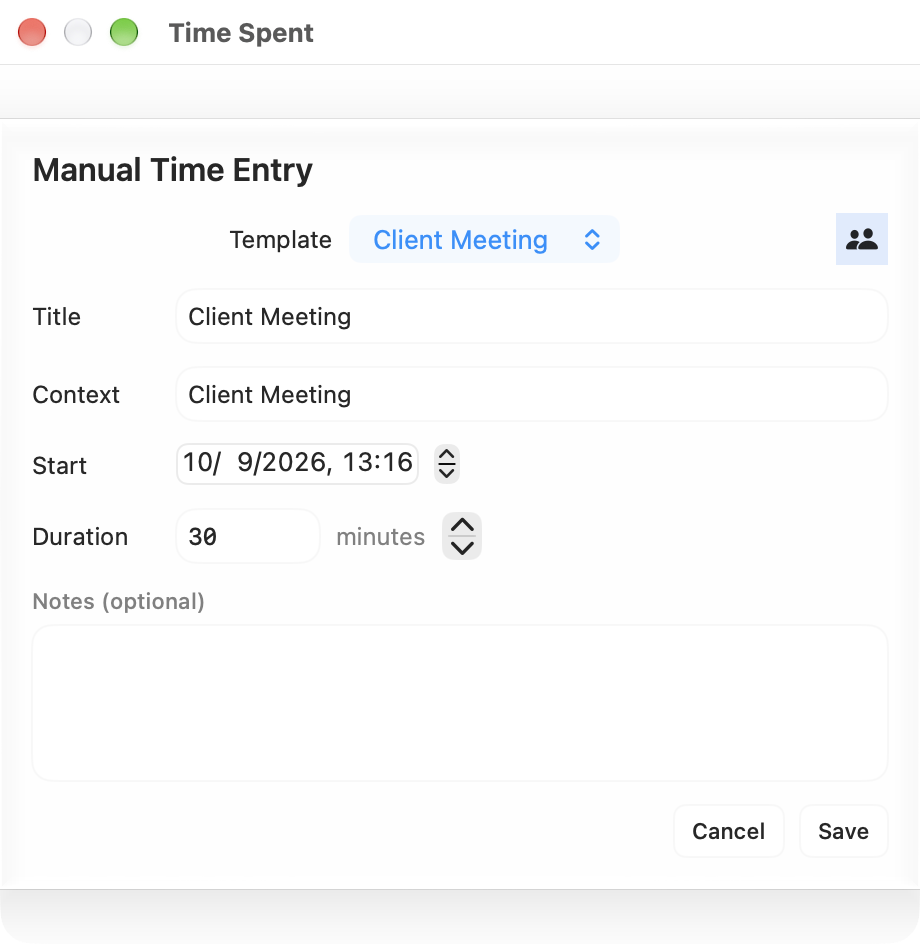
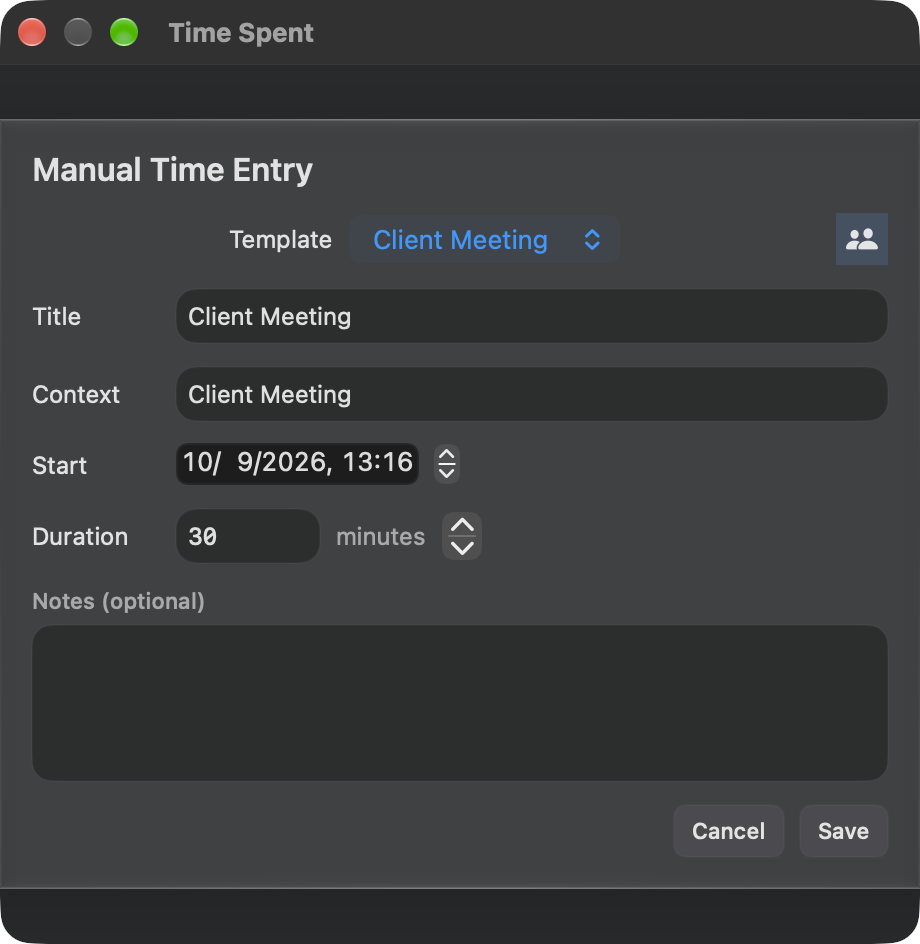
Add manual entries with a title, start time, duration, context, and notes, or start a timer with independent pause, resume, and stop controls. Reusable templates supply a category, icon, and color. Both tools work when automatic tracking is off. Manual time can overlap tracked time, so the reports keep those totals separate.
Keep history close at hand
Check today’s activity and tracking state in the dock widget, including in a side dock. Open the overview and manual tools from the optional menu bar item, or manage tracking and templates in Settings. Pause and resume automatic Time Spent and Remembrance together; saved history remains available when tracking is paused or off.
Choose what capture includes
Exclude apps or URL patterns, including wildcards for hosts and paths. Ignore Private Browser Sessions skips detected private sessions in supported browsers and is enabled by default. Privacy Pause temporarily pauses automatic Time Spent, Remembrance, and clipboard capture for 5, 15, 30, or 60 minutes. Saved history, exclusions, and enabled settings remain intact; manual timers stay independent.
Export and manage records
Export every record matching your current filters as CSV to a location you choose. Exports retain original timestamps and full record durations, including records that span your selected dates. Select or copy activity details and URLs, delete individual entries, or clear the full Time Spent history with confirmation. Excluding an app later does not hide its saved records or dates.
Reports that keep moving
Reports load in the background while you refine your filters. The activity stream shows the latest 500 matches; filtered totals and CSV exports include every match. Low Power Time Spent Updates refreshes the dock widget less often while automatic tracking stays active.
Daily charts show up to 30 days. Date reports allocate spanning records to the selected interval. When exact active intervals are unavailable, the allocation is proportional and the overview identifies the estimate. CSV exports keep the full original records.
Manual entries and timers
Manual time, with room for context.
A manual entry accepts 1–1,440 whole minutes. A timer keeps running when you close its window; reopen it to pause, resume, or stop the session.
Find a screen you remember by searching its text, app, or date. Optional screenshots and text recognition build a searchable history that stays on your Mac, with exclusions, retention limits, and a privacy pause.
Liquid GlassLight presetLiquid GlassDark preset
Search, capture, and privacy
Capture the work you choose
Remembrance is off by default. Enable it alongside automatic Time Spent tracking and allow macOS Screen Recording access to capture active windows from tracked apps. It waits for available browser metadata to settle, compresses screenshots, and skips unchanged windows to reduce repeated captures.
Search all saved history
Press ⌘F to search app names, window titles, URLs, and captured text across your saved history. Combine words in any order to narrow the results; search also matches differences in case and accents. Matching words are highlighted, and Escape clears the search. Apple’s Vision framework recognizes text on your Mac without uploading the image.
Narrow it down by date, app, or type
Choose All Time, Today, Last 7 Days, Last 30 Days, or Choose Day for one specific day. Filter by an app from your saved history, then show All Captures, Screenshots, or Text Only. Combine these filters with search, or use Reset Filters to clear search, date, app, and capture type together.
Browse moments without losing your place
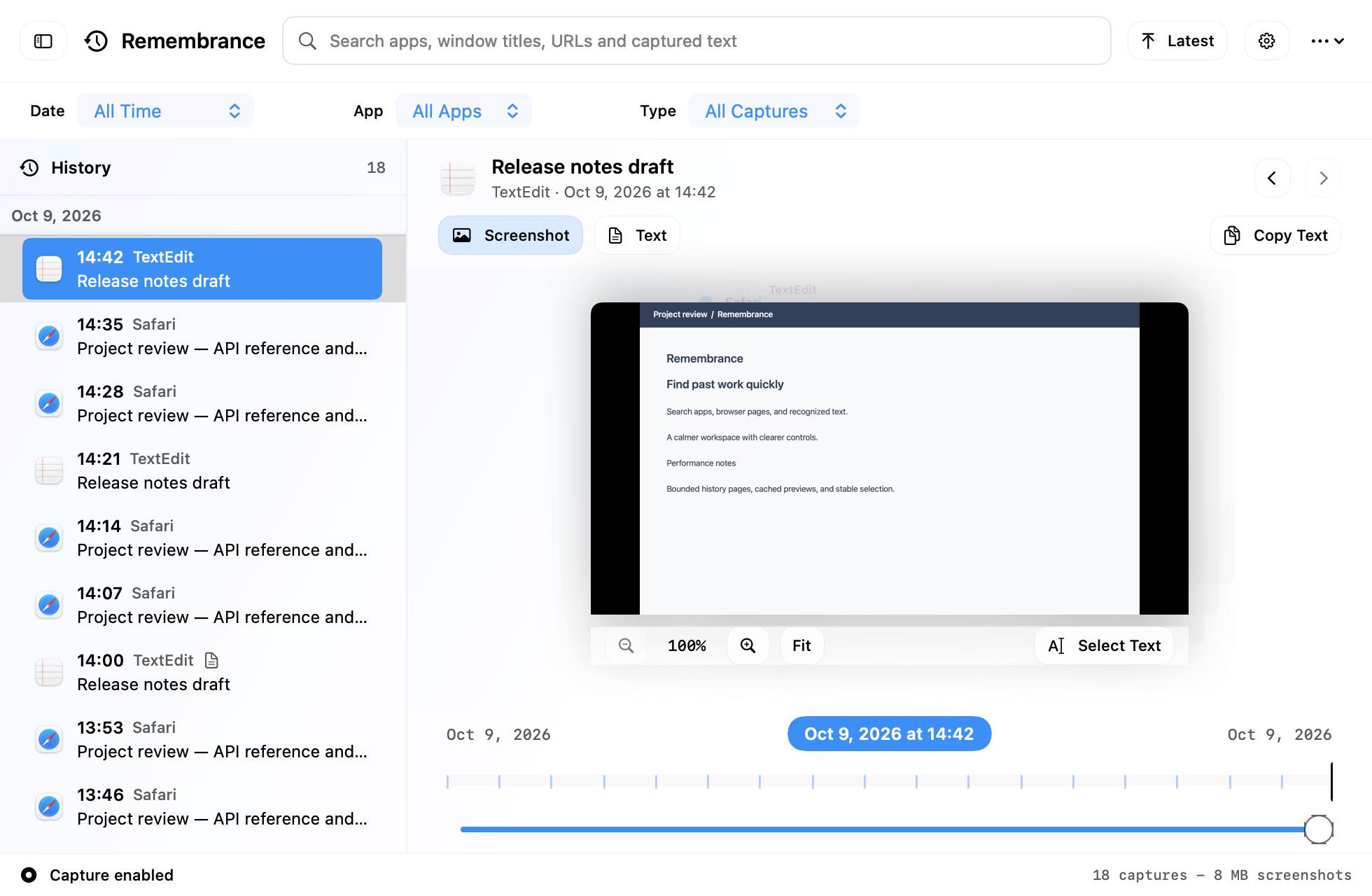
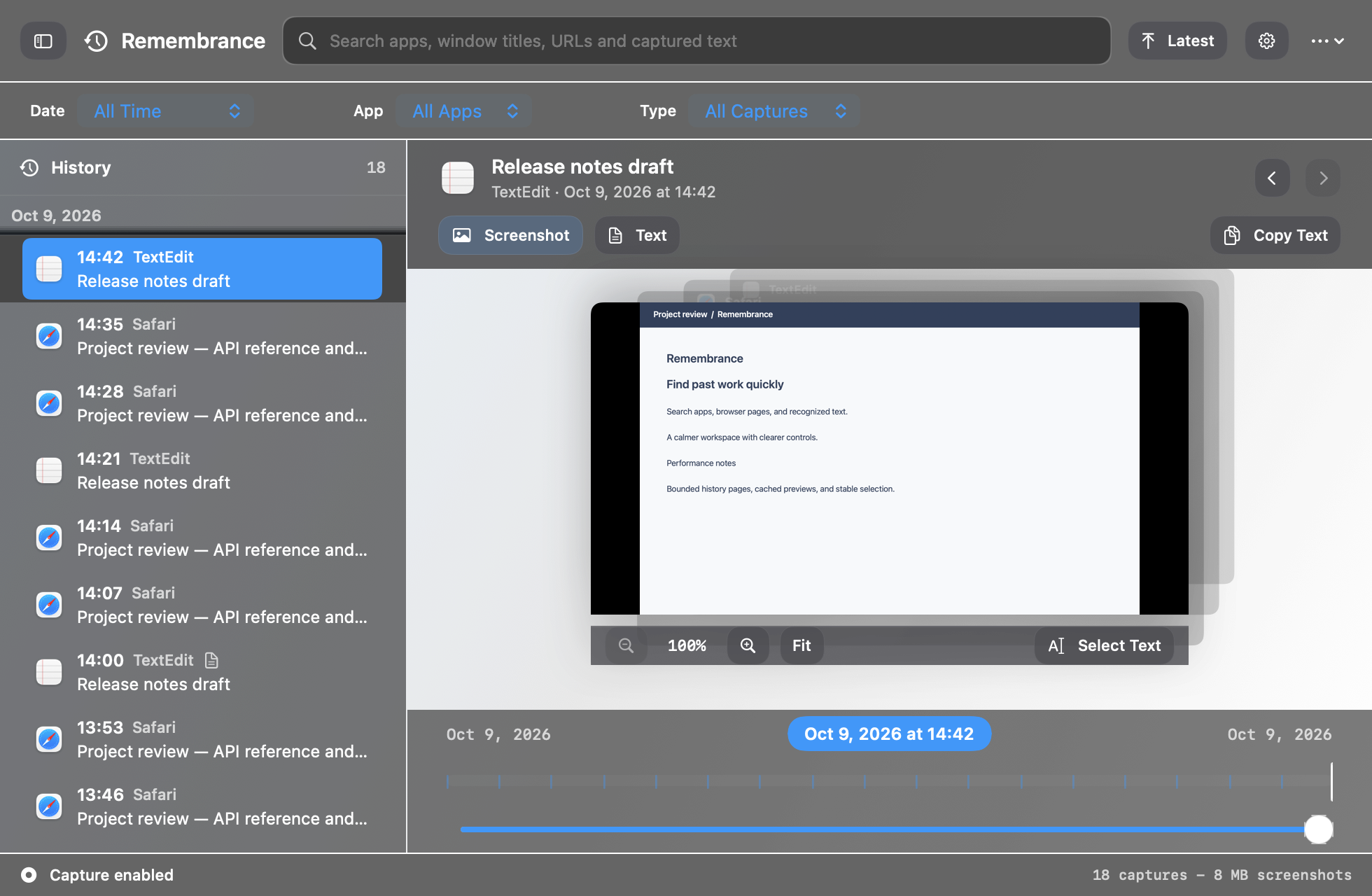
Browse history grouped by day, load earlier captures as you scroll, and move between moments with the timeline or previous and next controls. The timeline reflects the captures you have loaded. Hide the sidebar for more viewing space. Latest clears all filters and jumps to the newest capture; ⌘R refreshes history while retaining an older selection.
Inspect the screen and use its text
Zoom and pan a screenshot, or use Fit to reset the view. Switch to Text to read and select the full captured text; text-only records open in that view automatically. Select Text enables selection of recognized words on the image, and Copy Text copies the capture’s saved text. When a web URL is available, use Page to copy it or open the original page in your browser.
Control capture frequency
Set a capture interval from 5 seconds to 5 minutes. Low Power Remembrance Capture reduces capture activity, and quiet windows are checked less frequently. Time Spent’s app and URL exclusions also apply to Remembrance, including detected private browser sessions when Ignore Private Browser Sessions is enabled.
Pause capture and keep browsing
Saved captures remain available when capture is off or automatic tracking is paused. Privacy Pause stops new clipboard, Remembrance, and automatic Time Spent capture for 5, 15, 30, or 60 minutes while keeping saved history, exclusions, and enabled settings intact. The panel shows capture status, the pause countdown, and a Resume action; it also points you to Settings when capture is off or Screen Recording access is missing.
Keep the text, reclaim the images
Set a screenshot storage budget and optionally convert older screenshots to text-only records after a chosen age. Saved recognized text stays searchable after its image is removed. Enable Delete Text-Only Captures Later to remove those records once the capture reaches the screenshot-retention age plus an additional delay.
Manage your capture history
Check the stored capture count and screenshot usage, select and delete individual or multiple captures, or clear all history with confirmation. Deletion permanently removes saved screenshots and recognized text. Exclude App and Delete History also excludes that app from future Time Spent tracking and Remembrance capture. Deletion runs in the background; if only part succeeds, the panel reports it and keeps the remaining history available.