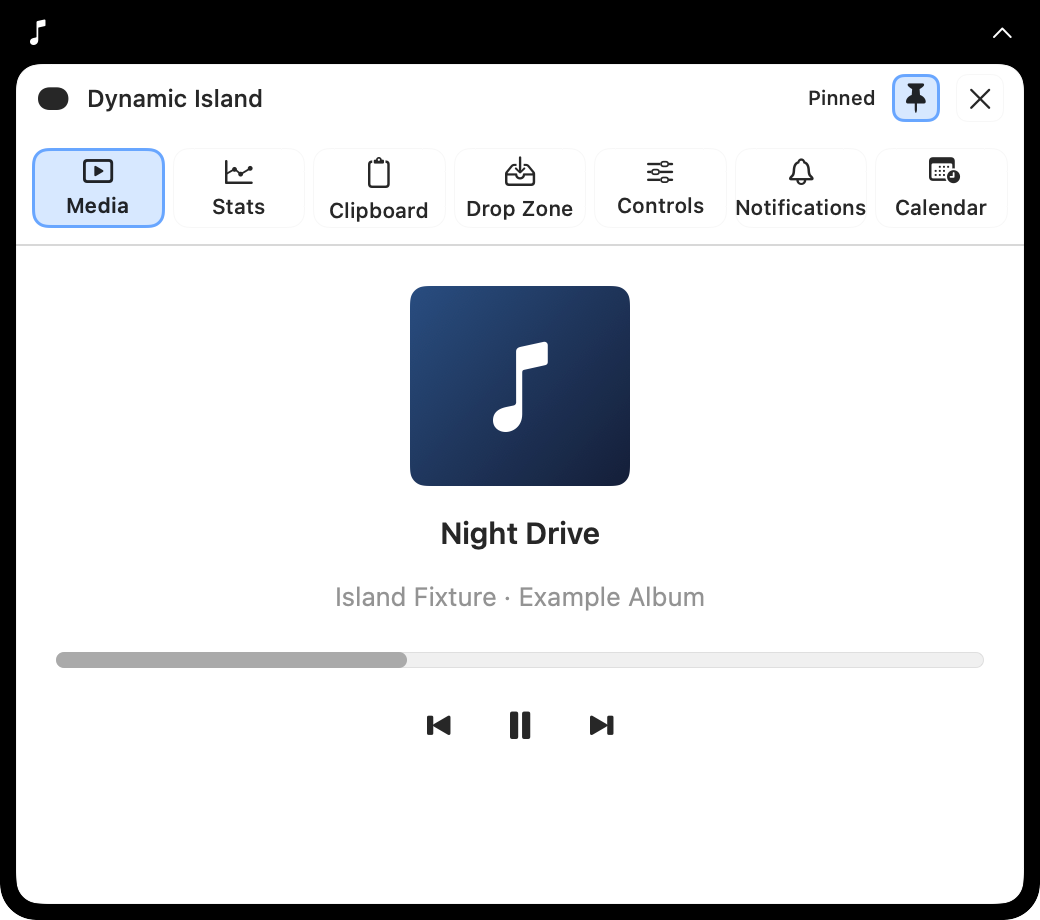
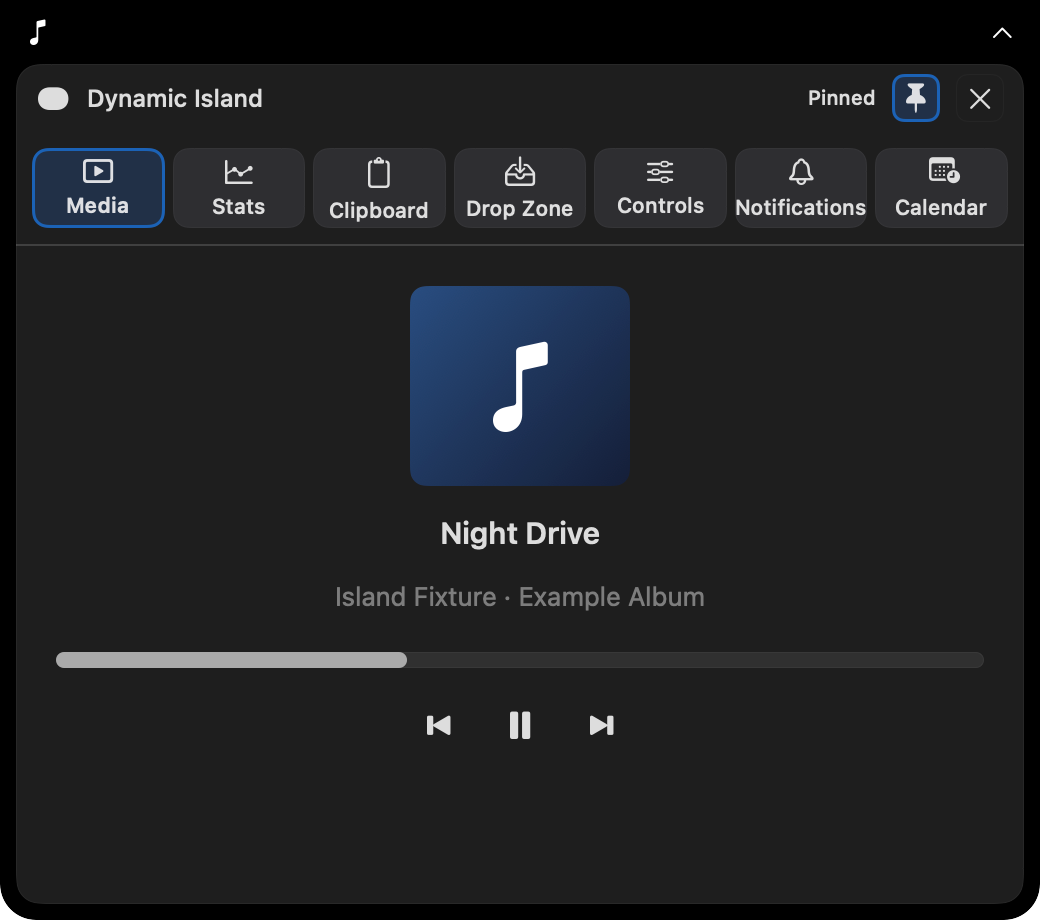
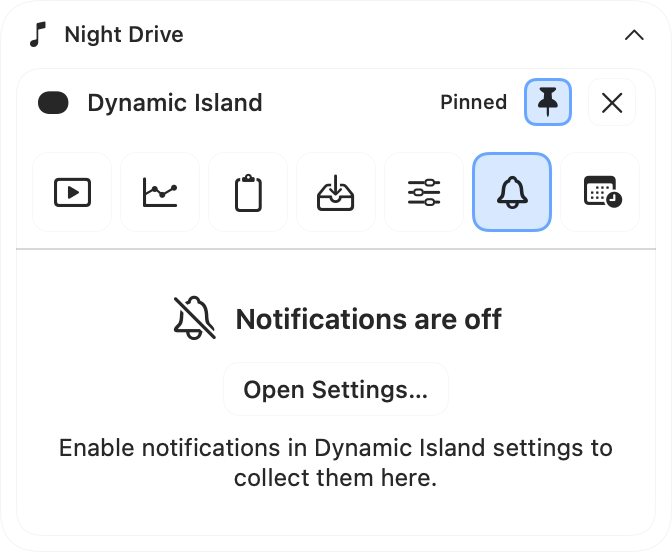
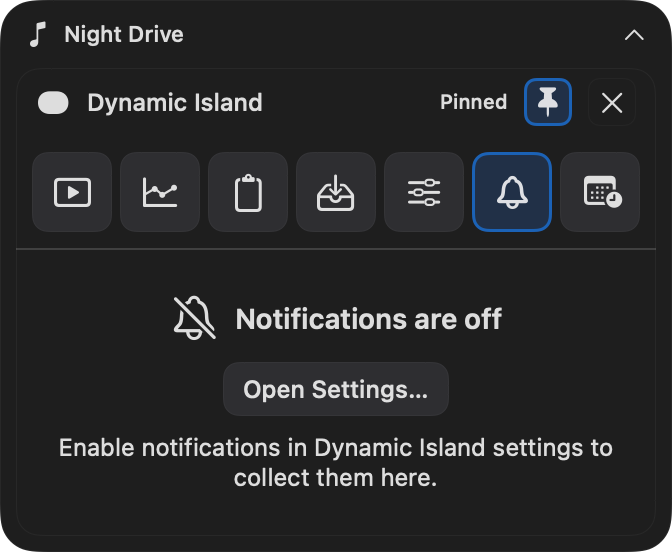
Dynamic Island is off by default. Enable it in Settings → Dynamic Island and choose its displays independently from your dock.
Media · Now Playing
See artwork, track and artist information, playback state, and read-only playback progress from apps that publish macOS Now Playing information. Use play/pause, previous, and next where the source app supports them. Explore the dock’s Now Playing widget. In the collapsed Island, the optional React to playing audio setting makes the bars follow the current source on macOS 14.2 or later and may require audio capture permission. The regular animation remains available when live audio is unavailable; Reduce Motion keeps the bars still.
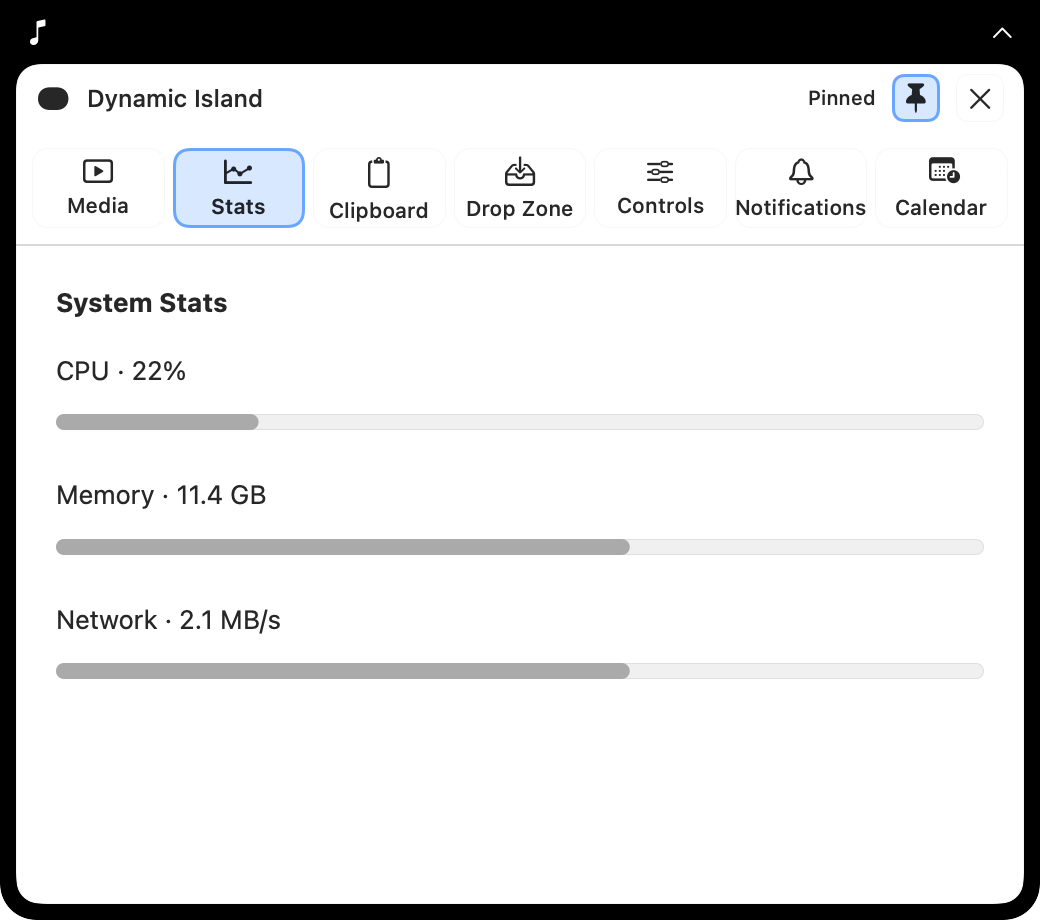
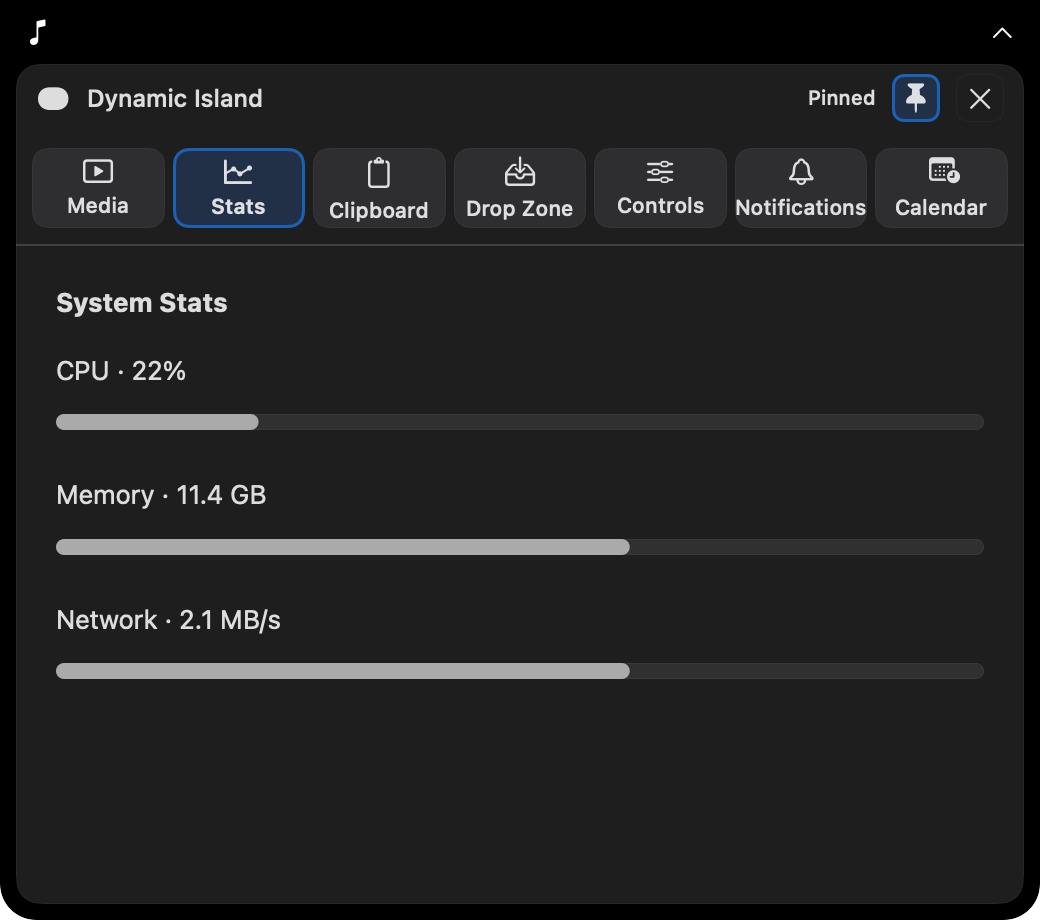
Stats · your Mac’s activity
Open the shared System Stats panel for CPU and available GPU readings, per-core activity, memory, network graphs, and top CPU apps. The Island uses the same detailed dashboard as Docktopus’s other Stats surfaces.
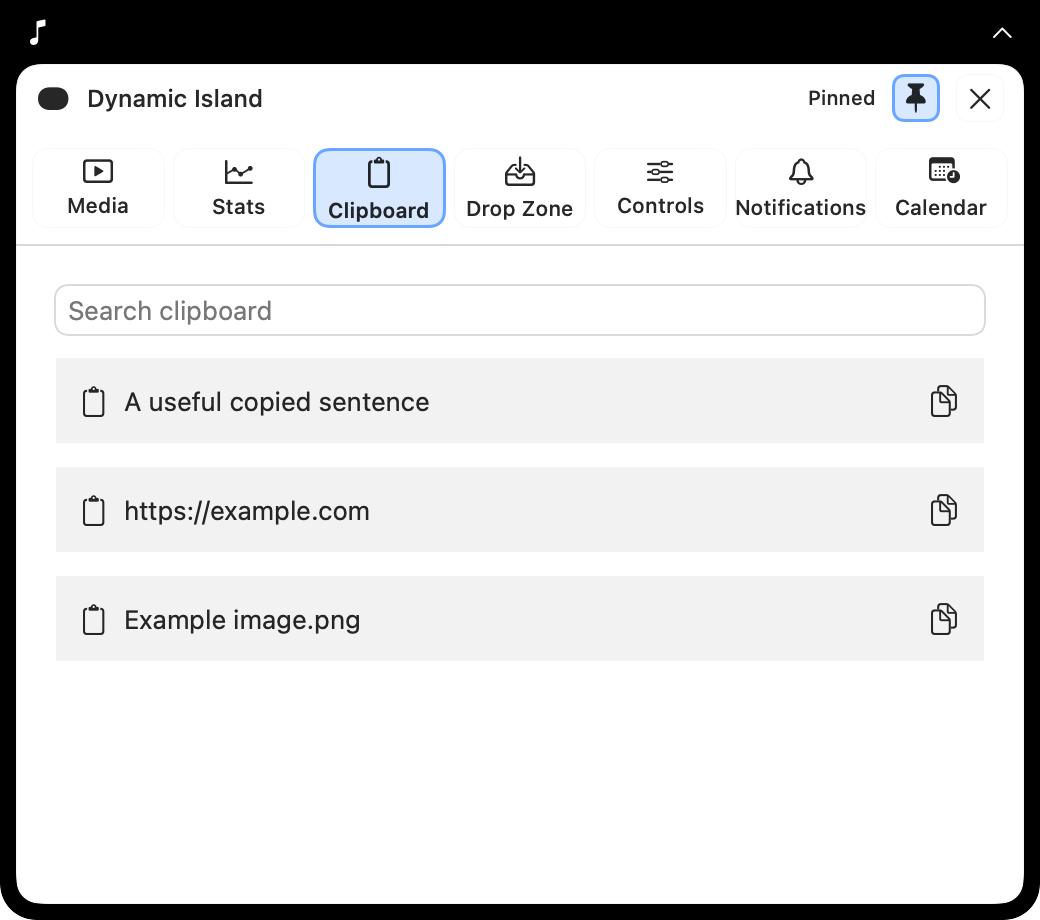
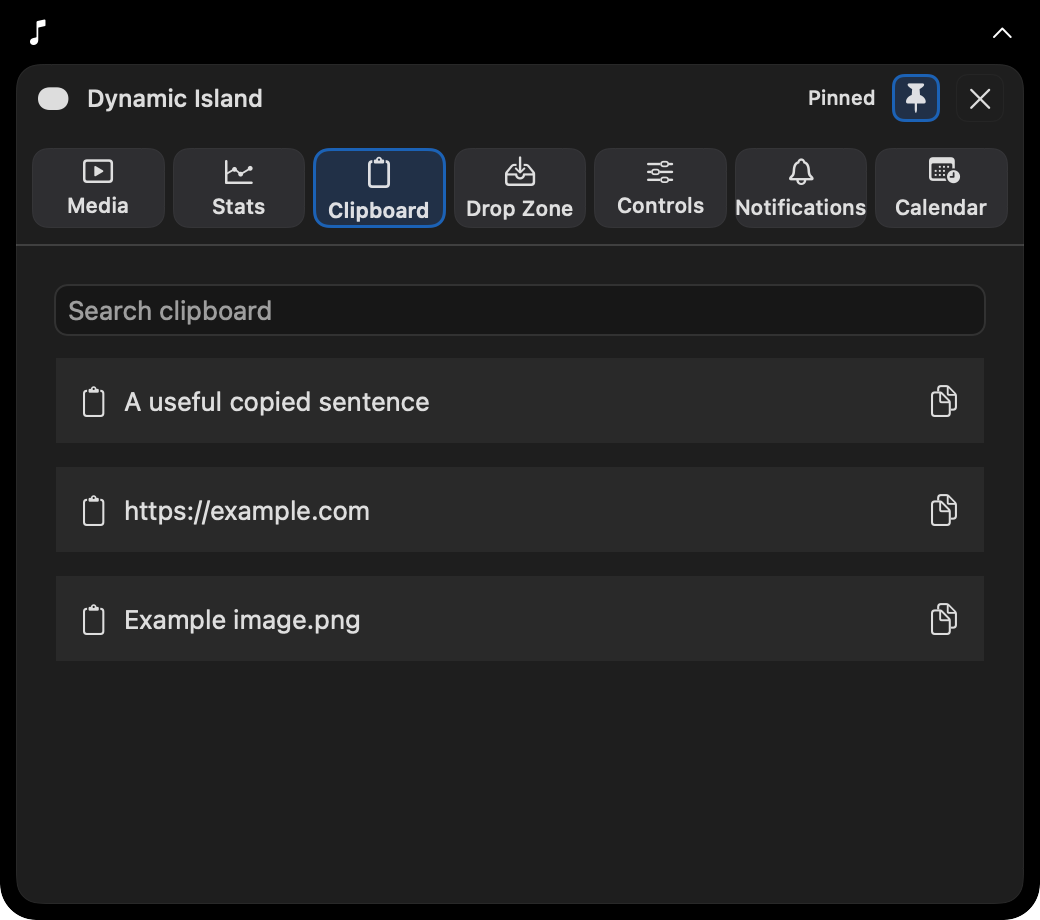
Clipboard · shared history
Search and reuse your existing Clipboard Manager history, including pinned clips and category controls. Clipboard Manager must be enabled separately. When it is off, the Island provides a direct link to its settings.
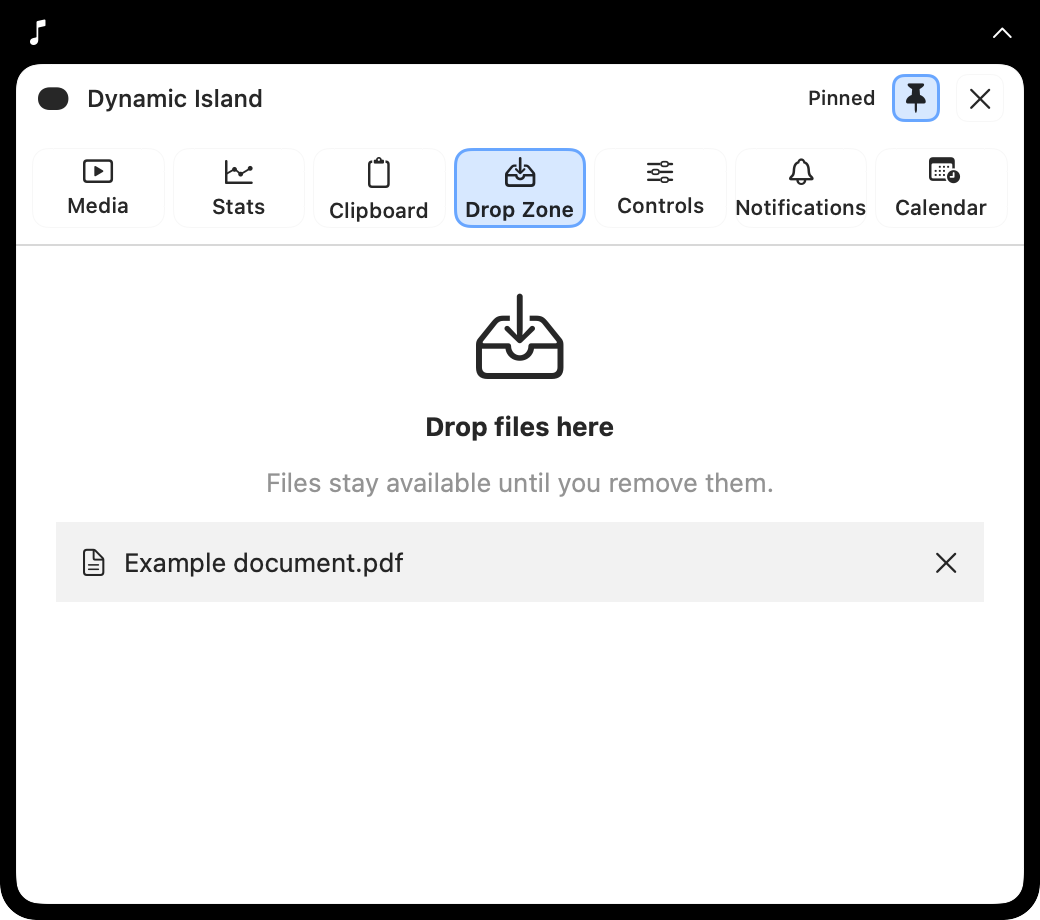
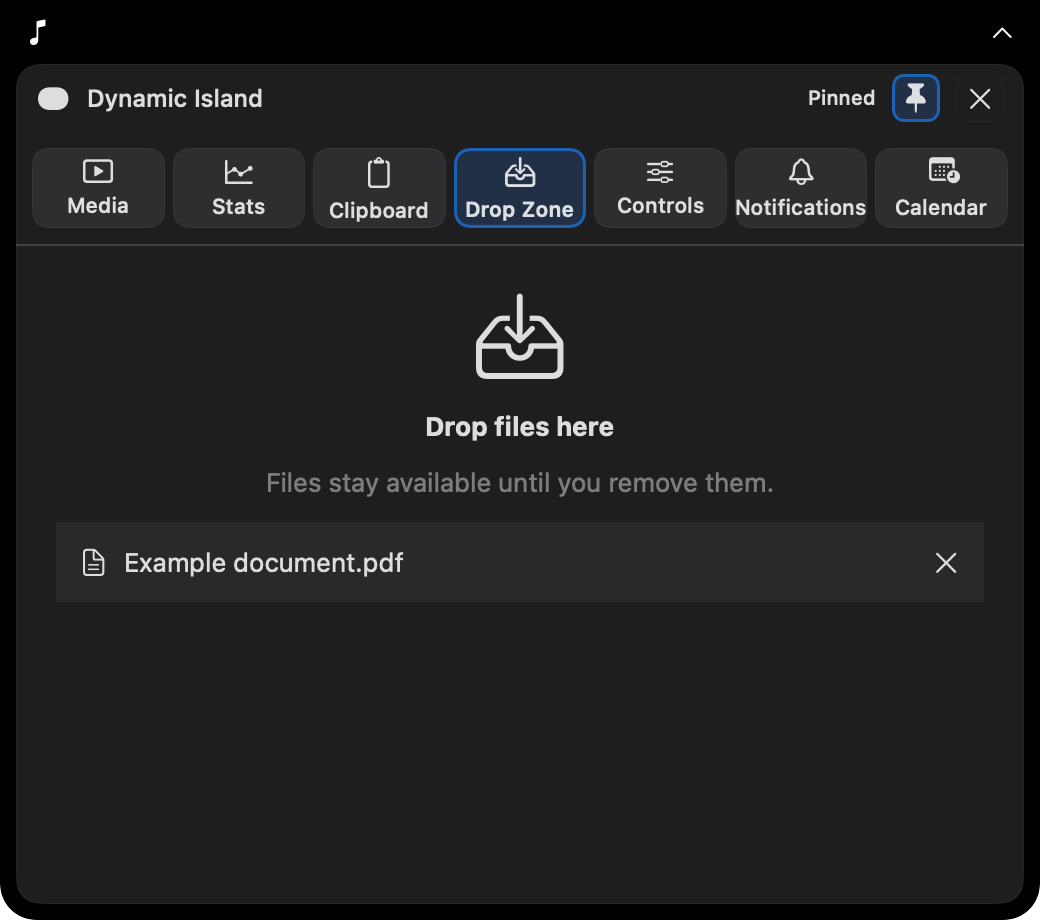
Drop Zone · a saved shelf
Collect files, folders, links, text, and images in the shelf shared with the dock and menu bar. Items restore after restarting Docktopus. Drag an item out, open it, copy it, or reveal it in Finder. Explore Drop Zone, its saved copies, and recovery controls.
Controls · audio and displays
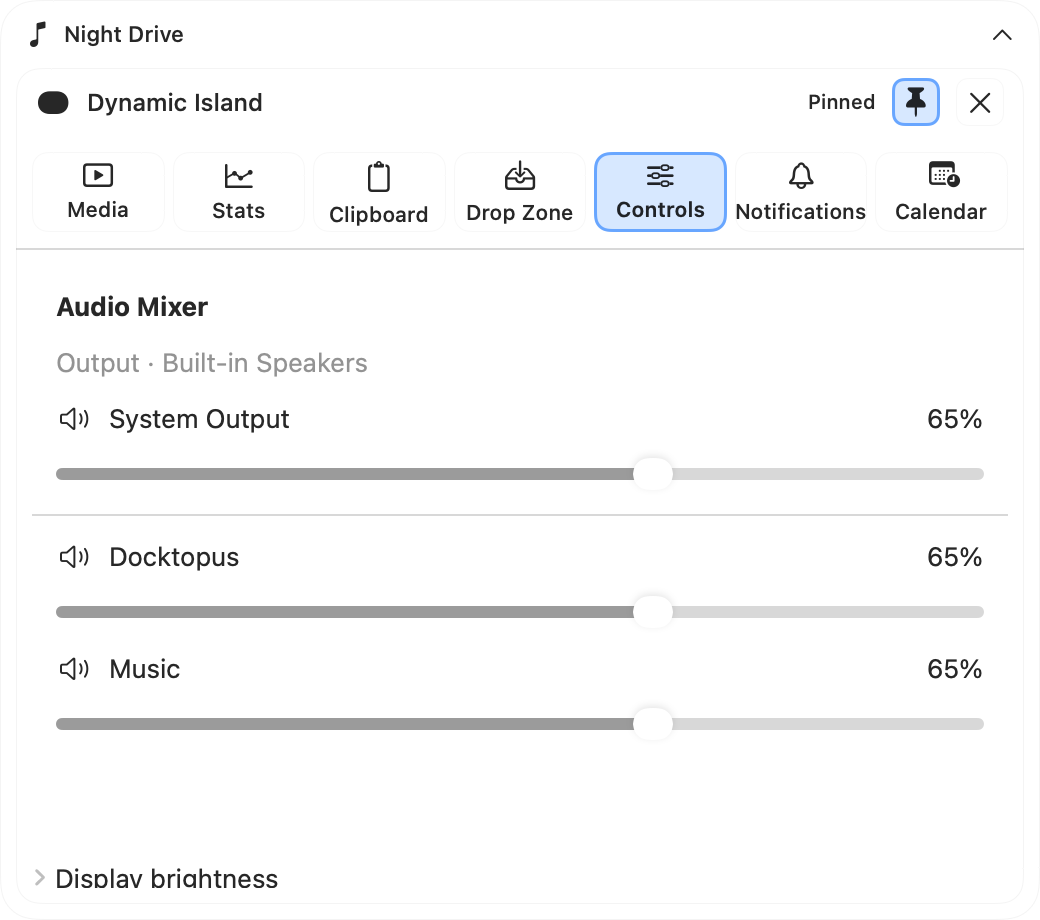
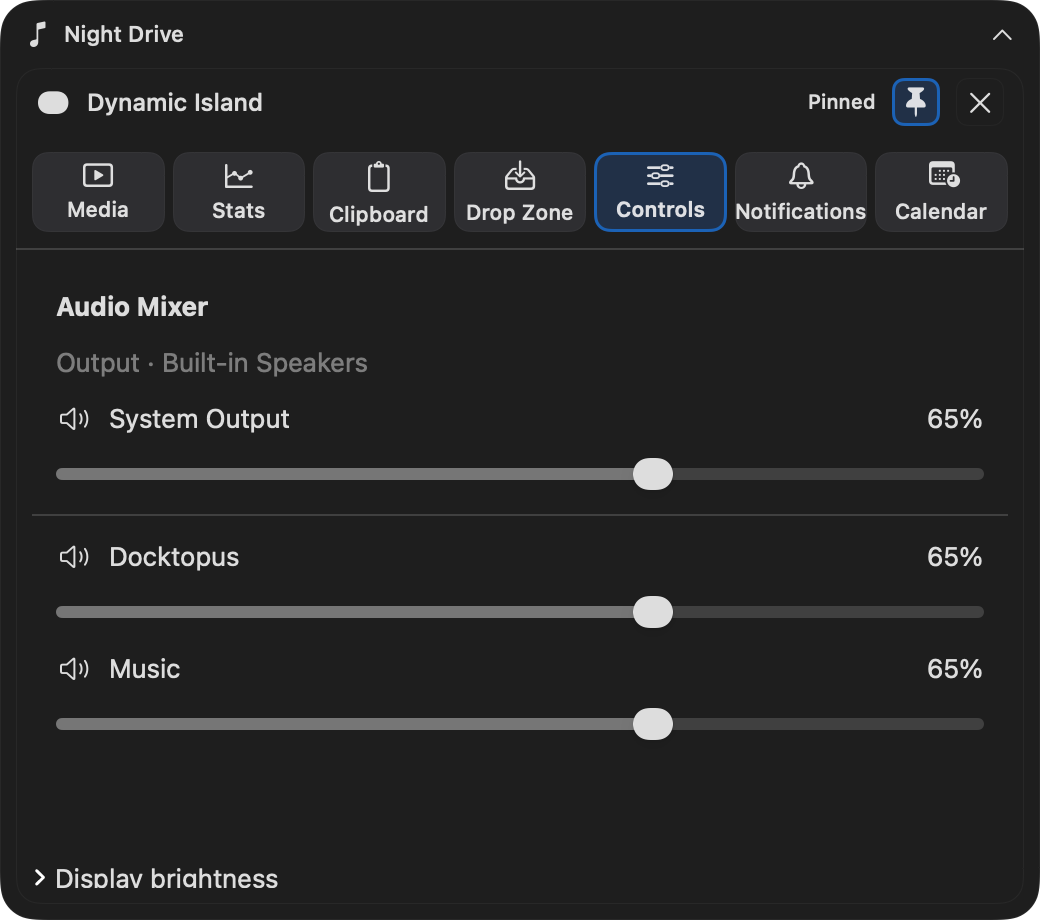
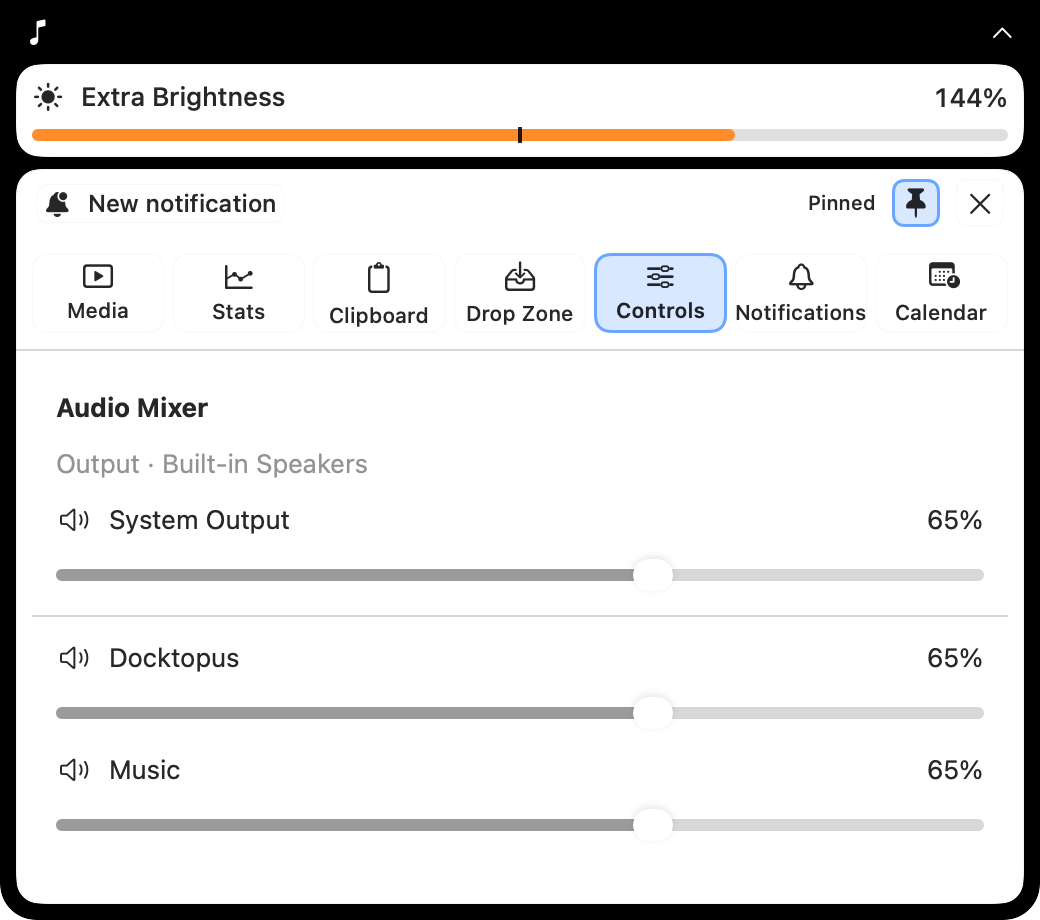
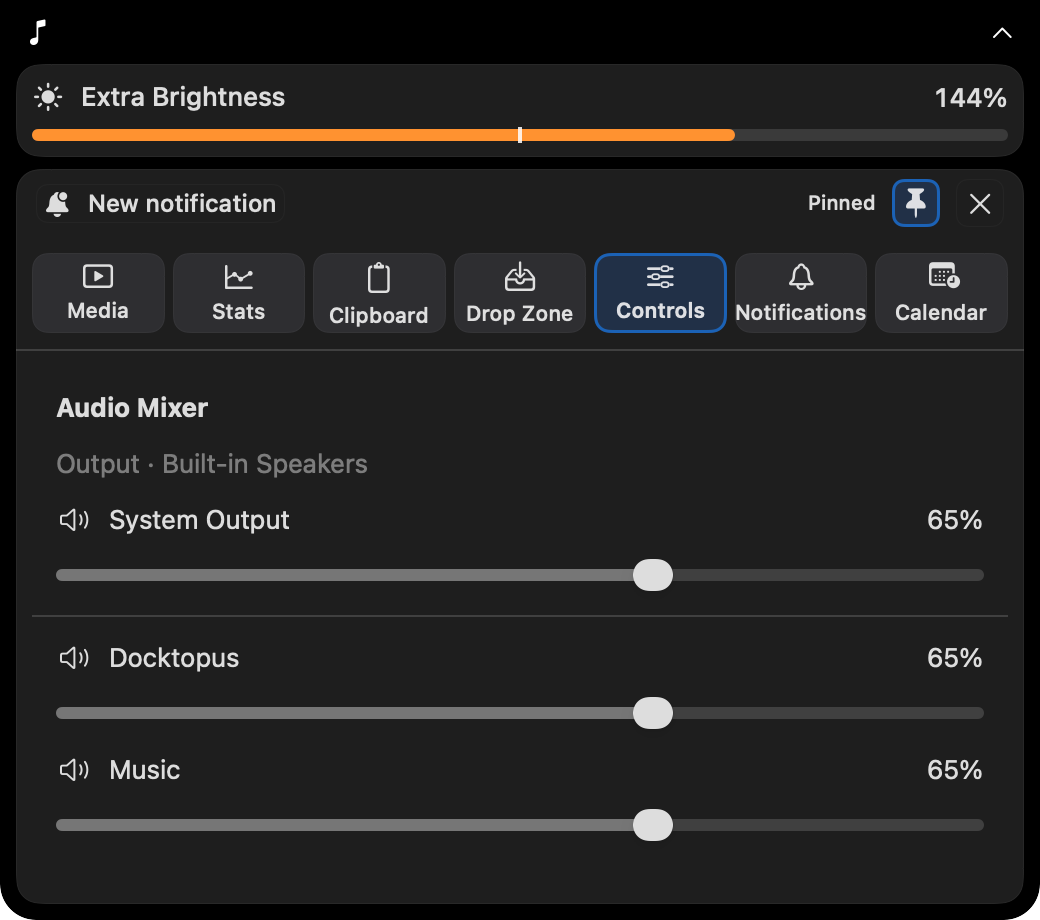
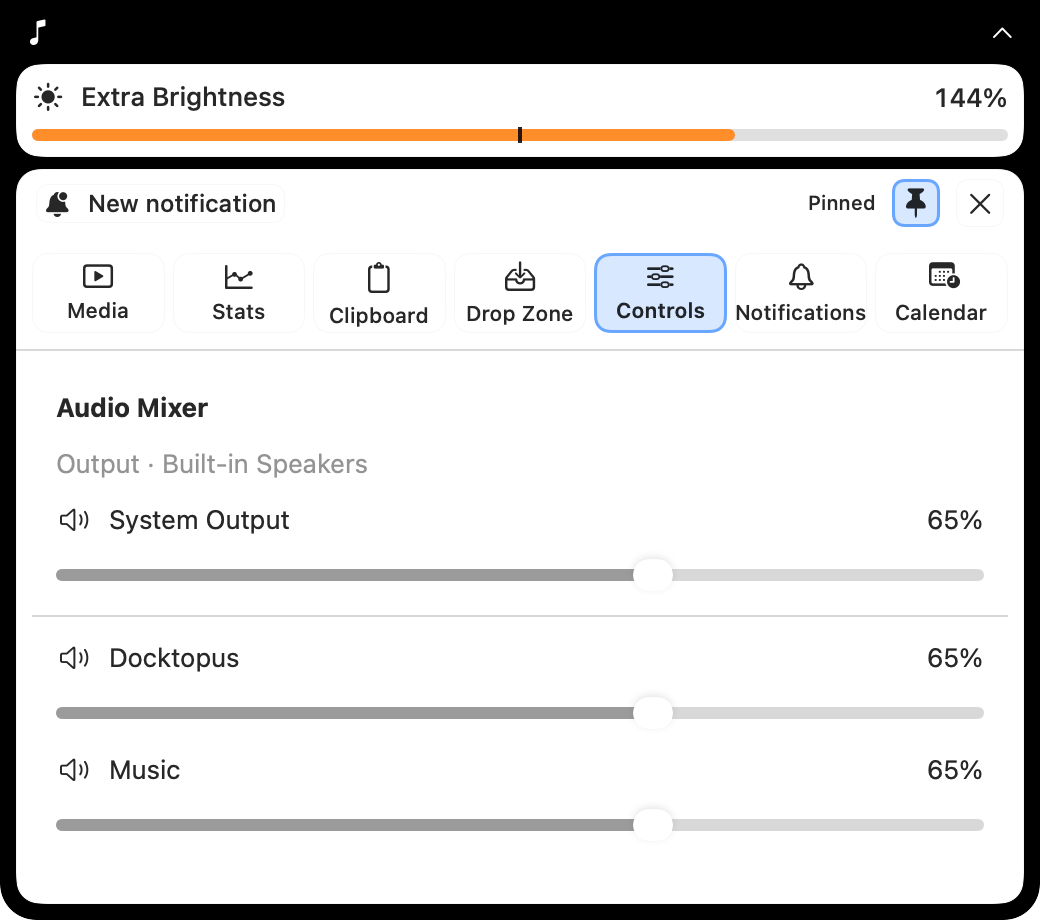
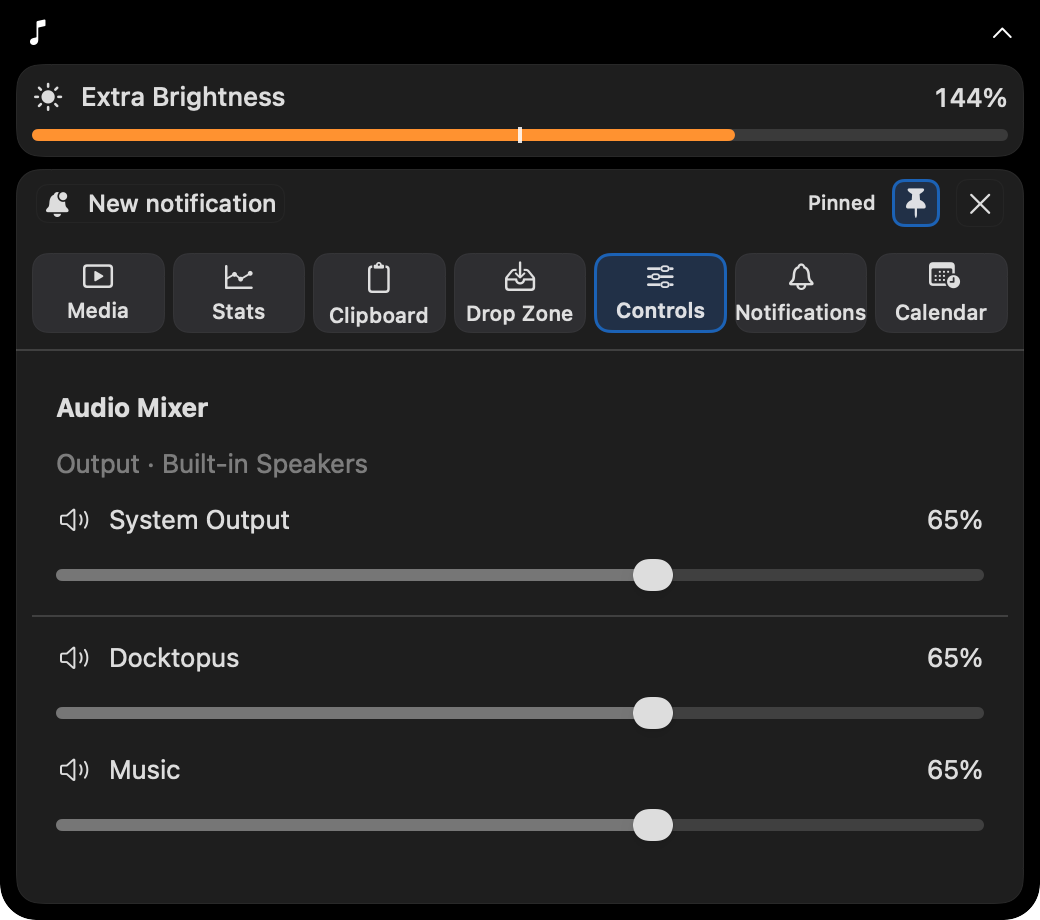
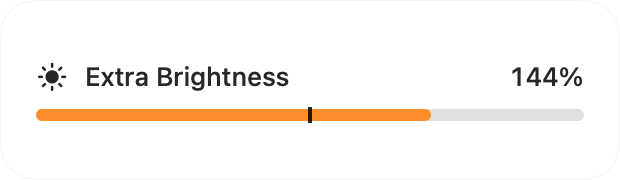
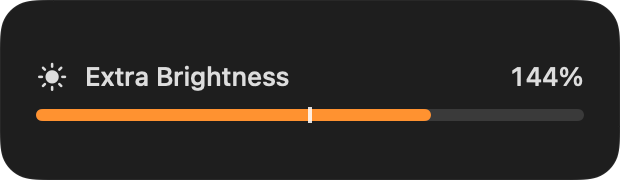
Choose an audio output, adjust supported system volume, and balance application audio and enabled Docktopus keyboard and mouse sounds through the shared Audio Mixer. Per-app controls require macOS 14.2 or later. Expand Display brightness for compatible displays; the section scrolls alongside the mixer so application controls remain reachable. Explore Display Controls and full display settings.
Notifications · optional previews
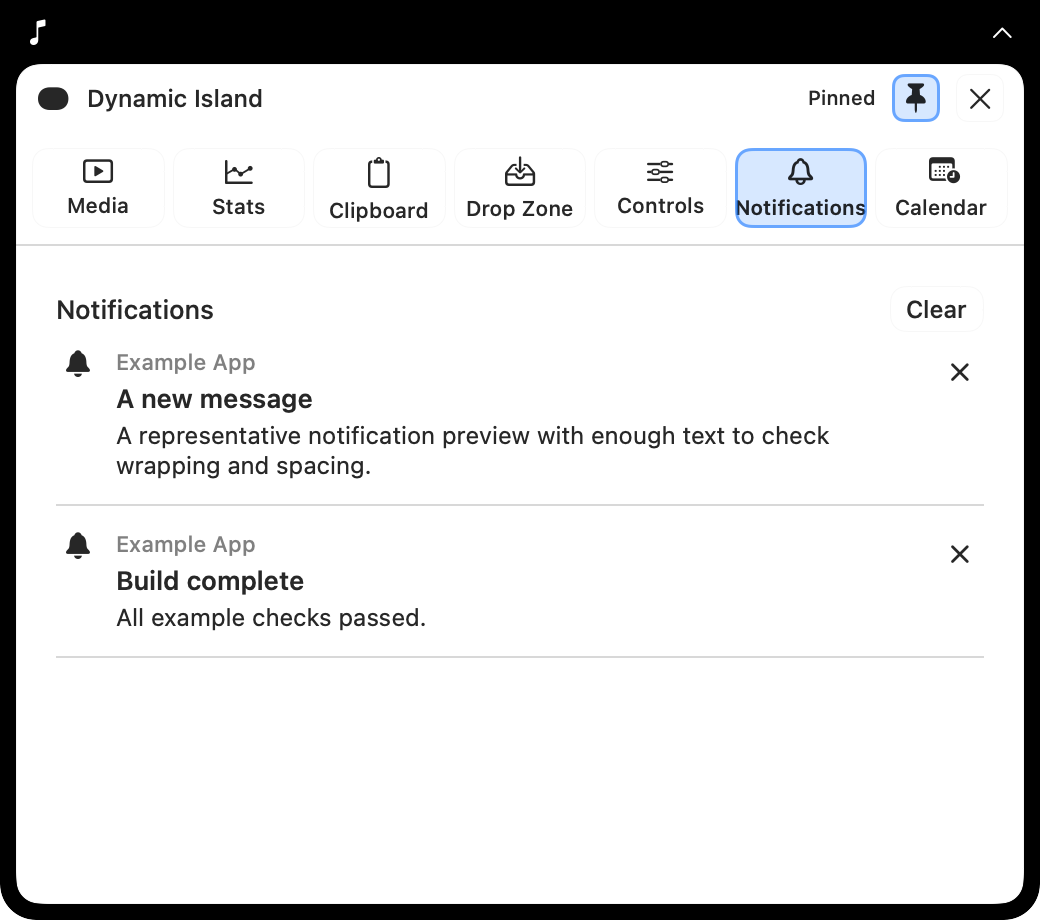
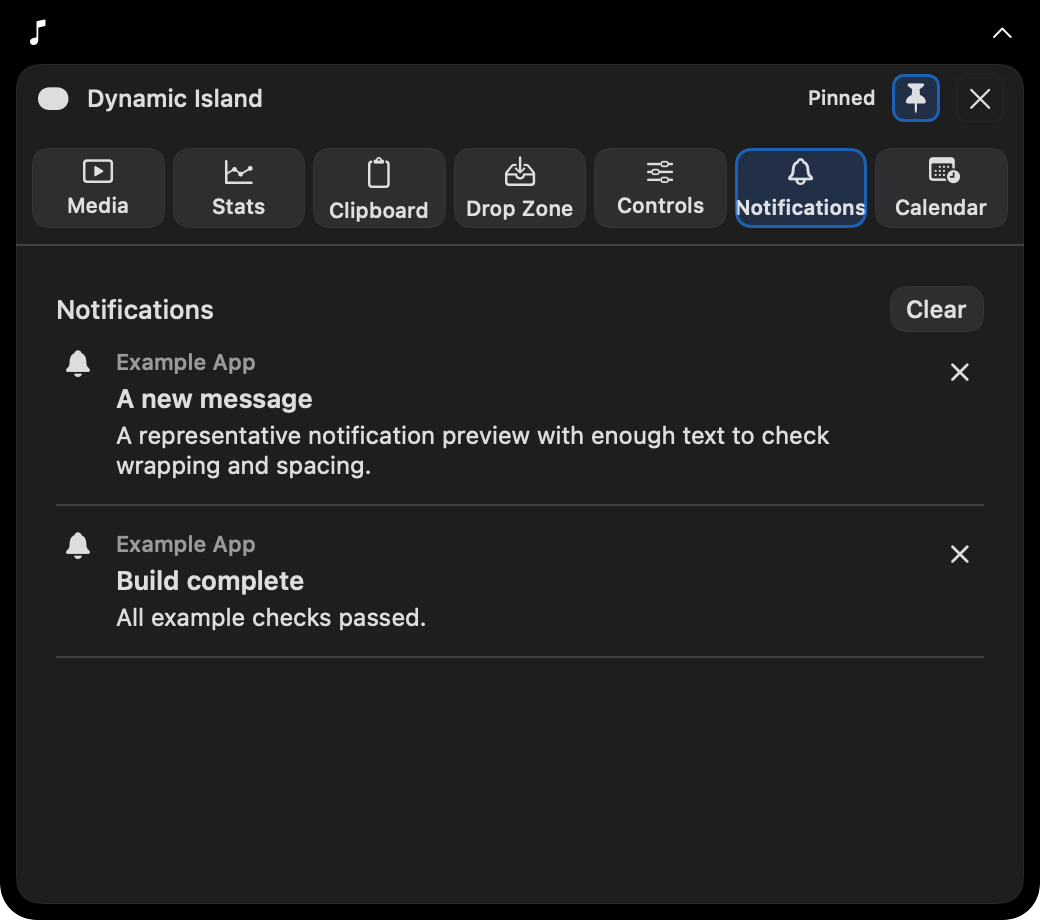
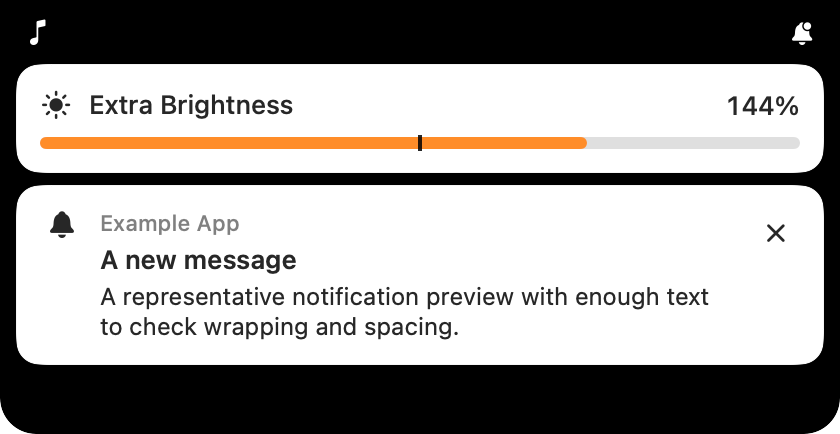
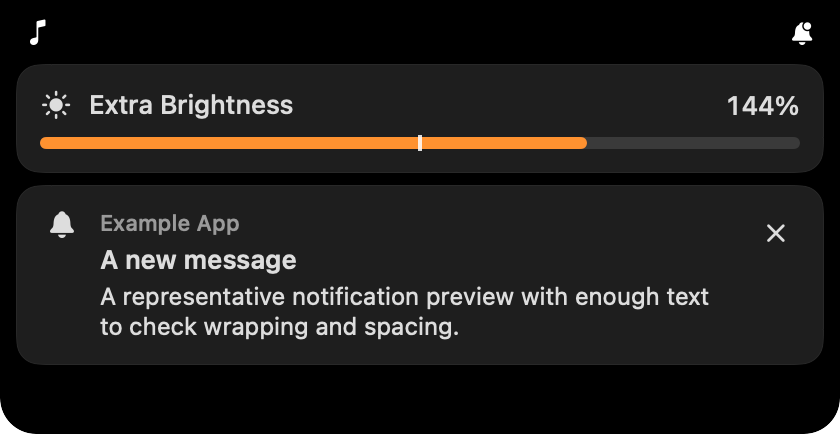
Enable notifications separately to see incoming previews and up to 100 recent entries in memory. A collapsed Island shows the preview; an expanded Island offers a New notification button while keeping your selected activity usable. Open the source app, hide a preview, remove history entries, or exclude an app.
Calendar · your next meeting
See a compact countdown before a timed event, then Now while it is in progress. Calendar previews start 15 minutes before by default; choose 5, 15, 30, or 60 minutes in Settings → Dynamic Island, or turn them off. Click the countdown to pin Calendar and reach event details, the agenda, and Join. Explore Calendar and its previews. All-day events stay in calendar views; keyboard feedback and incoming notifications keep priority in the compact strip.
Open, pin, and use the keyboard
Choose Hover or click, or Click only. A brief hover opens the Island without taking keyboard focus. Click the header or pin button to keep it open; click again, use Close, or press Esc to dismiss it. A deliberate close stays closed until the pointer leaves. When the Island is focused, ⌥1 through ⌥7 select its seven activities.
Drop without losing your place
Dragging a supported item over the Island previews Drop Zone, including in Click only mode. An accepted drop keeps it open and pinned. Cancel the drag to return to your previous activity and pin state.
Themes, notches, and several displays
Use Liquid Glass, CDE, or Windows 95, with light and dark presets. The physical notch surround stays black while the content, controls, and keyboard feedback use your theme. Displays without a notch get a compact Island at the top center. Enable one or several displays; if every selected screen is disconnected, the primary display provides a fallback. Display changes preserve surviving Islands’ activity and pin state.
Keyboard feedback, with or without an Island
Opt in to brightness and volume keyboard overlays with Accessibility access. Feedback appears in the Island on the affected display, or in a standalone themed overlay when that screen has no Island. Unsupported audio outputs keep their macOS controls. Display Controls can be enabled independently of Dynamic Island.
Live views when you need them
Hidden activities release their live presentation work, and display brightness refreshes only while its disclosure is open. Reduce Motion makes expansion immediate and stops animated playback bars. Upcoming Calendar checks continue while the Island and its Calendar previews are enabled, including when collapsed. Enabled Clipboard and notification capture keep their own settings and may continue when the Island is closed.
Choose capture and permissions deliberately
Opening the Island does not enable Clipboard Manager or notification capture. Calendar requires macOS Calendar access; opening an event may also ask for Automation permission for Calendar. Banner capture requires Accessibility. Experimental quiet delivery requires Full Disk Access and a restart; it reads Notification Center records, temporarily manages included apps’ desktop banners, and can read stored message text even when macOS hides previews. Delivery can take several seconds and support depends on macOS. Per-app audio and optional audio-reactive bars may require audio recording access.